Skip to content

Modifiers

Sizes, milks and extras, priced right every time

Build modifier sets for sizes, milks, syrups and extras, with extra charges and required choices. Staff capture every preference in a couple of taps in Shopify POS, and the same options appear online, on kiosks and on every kitchen ticket.

Works on any Shopify plan, with Shopify POS Lite or Pro.

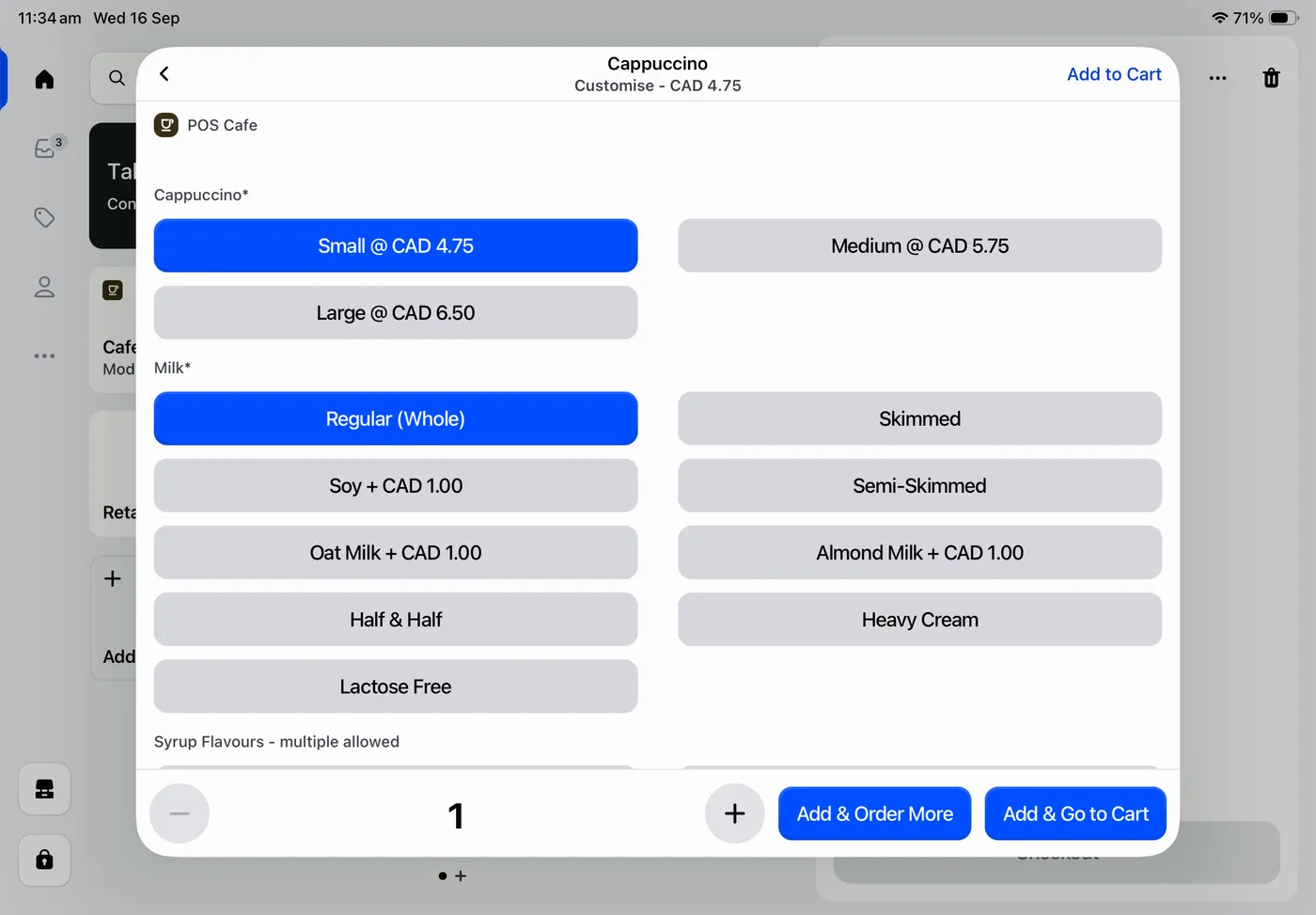
A cappuccino being customised in the POS Cafe tile on Shopify POS: size buttons priced Small, Medium and Large, milk options with extra charges for soy, oat and almond, and Add & Order More and Add & Go to Cart buttons

How it works

One set of modifiers, everywhere you sell

Set your options up once. The counter, your online menu, kiosks and kitchen tickets all use the same modifier sets.

  1. Create your modifier sets

    Make a set for each choice, such as Size, Milk or Extras, with an extra charge on any option. Or import products you already have in Shopify.

  2. Assign them to products

    Attach modifier sets to your cafe products from Cafe Collections, one product at a time or several at once.

  3. Staff tap, customers choose

    Staff build each order in the POS Cafe tile in Shopify POS. Customers see the same options on your online menu and kiosks.

Choose your tile

Full reporting, or the fastest add to cart

Both tiles use the same menu, modifiers and screens. The difference is what goes in the Shopify cart, and you can switch later.

Most cafes

POS Cafe tile

Adds the real Shopify product to the cart, with the chosen modifiers attached and priced as a bundle.

  • Shopify tracks stock on the product and each charged modifier
  • Sales reports by product and by modifier, with modifier SKUs
  • Cost of goods and loyalty apps work as for any product
Fastest

POS Cafe - Lite tile

Adds one custom sale line for the whole item, priced on the device with the modifiers as item details.

  • The quickest add to cart
  • The shortest customer receipts
  • No stock or product reports for cafe items

Built for cafe menus

Every option your menu needs

  • Extra charges

    Give any option its own charge, such as oat milk or an extra shot, and it’s added to the item’s price.

  • Required or optional

    Make a choice required, like size, so staff and customers can’t skip it, or leave it optional, like extras.

  • One choice or several

    Let customers pick more than one option from a set, such as two syrups, or just one, such as milk.

  • Import from Shopify

    Already have modifier products in Shopify? Import and convert them instead of starting again.

  • Assign in bulk

    Attach modifier sets to many products at once from a collection in Cafe Collections.

  • Edit after adding

    Changed their mind? Tap the item in the cart and choose Edit item to change its options.

  • On every ticket

    Each item prints, or shows on Fresh KDS, at its prep area with its size and modifiers listed.

  • Reports and stock

    With the POS Cafe tile, every modifier is a real Shopify product, so reports, SKUs and stock include them.

In the POS Cafe admin

All your modifier sets, on one page

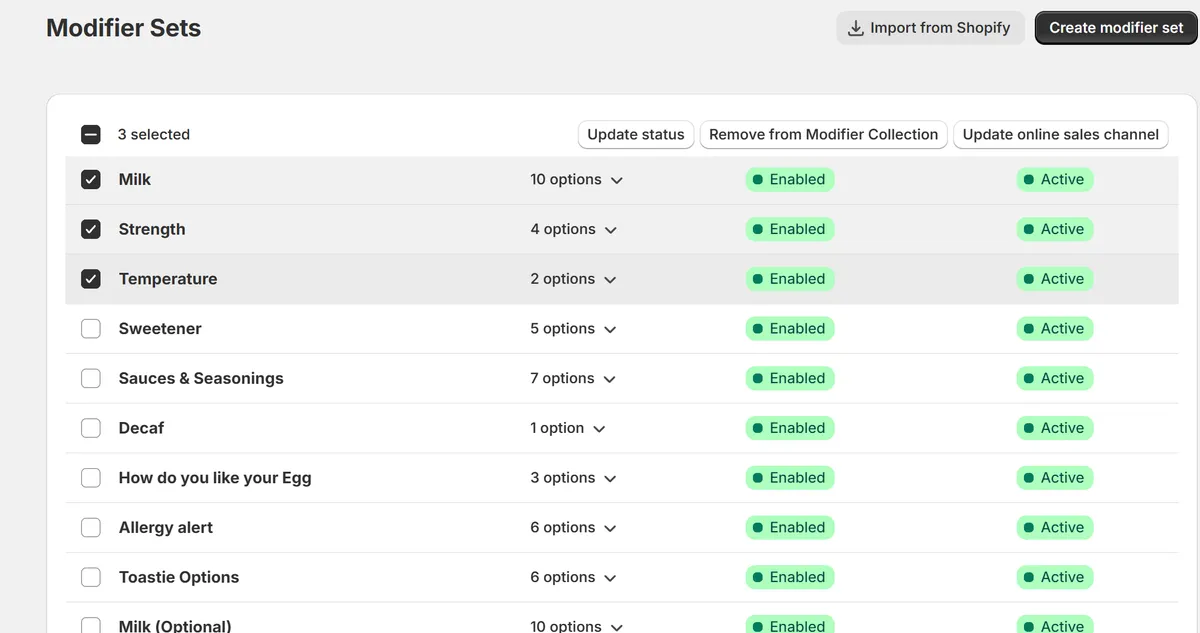
Create sets, import them from Shopify, and update their status or online availability for several at once.

Each set shows how many options it has and whether it’s available online.

The Modifier Sets page in POS Cafe: sets such as Milk, Strength, Temperature, Sweetener and Toastie Options with their number of options, online status and product status, three selected for bulk actions, and Import from Shopify and Create modifier set buttons

Questions

Modifier questions

How does POS Cafe store modifiers?
Each modifier set is a Shopify product in your modifier collection, and each option is one of its variants. Your modifiers stay in your store like any other product. Learn more: How does POS Cafe store modifiers?
Can an option add to the price?
Yes. Every option has an additional charge, which can be zero. Charged options are added to the item’s price at the counter, online and on kiosks. Learn more: Can an option add to the price?
Do modifiers track inventory?
With the POS Cafe tile, Shopify can take stock off the product and each charged modifier. Tracking is optional, and most cafes leave it off for milks and syrups. Learn more: Do modifiers track inventory?
Can staff change an item after it’s in the cart?
Yes. Tap the item, choose Edit item, change its options and tap Update Item. Shopify needs a one-time permission for POS Cafe in your POS app settings. Learn more: Can staff change an item after it’s in the cart?
Do the same modifiers appear online and on kiosks?
Yes. Turn on the online sales channel for a modifier set to show it on your online menu, and publish your modifier products to Cloudshelf for kiosks. Learn more: Do the same modifiers appear online and on kiosks?
I already have modifier products in Shopify. Do I start again?
No. Use Import from Shopify on the Modifier Sets page, then convert the products to POS Cafe modifier sets, one at a time or in bulk. Learn more: I already have modifier products in Shopify. Do I start again?

Try POS Cafe free for 21 days

Install from the Shopify App Store, create your first modifier sets, and take a fully customised order during the trial.