Skip to content

Open tabs and table service

Run tabs and table service on Shopify POS

Start a tab, send each round to the kitchen with one tap, and take payment when the table is ready. POS Cafe sends only the new items each time, so nothing is made twice.

Works with cloud receipt printers, the Shopify POS printer and Fresh KDS.

Table 4

Patio · open since 10:02 am

Open tab

Round 1Sent 10:02

  • 2 x Flat white (8 oz)
  • 1 x Bacon roll

Round 2Sent 10:31

  • 1 x Cappuccino (12 oz) - Oat milk

Round 3Not sent yet

  • 2 x Carrot cake
  • 1 x Long black
Send to prepCheckout · $48.50
Table 4 on the patio has an open tab. Round 1 (two flat whites and a bacon roll) and round 2 (an oat milk cappuccino) were sent to prep at 10:02 and 10:31. Round 3, two carrot cakes and a long black, hasn't been sent yet: tapping Send to prep sends only those items, and the customer can check out whenever they're ready.

How it works

From the first coffee to the last slice of cake

Staff take each round in the POS Cafe tile as usual. The table and what’s already been sent travel with the cart.

  1. Assign the table

    In the POS Cafe tile, tap Assign in the Table bar and choose the table. It’s recorded on the order and printed on each Send to prep ticket.

  2. Send each round to prep

    Tap Send to prep, or save the cart as a draft. Each time, only the new items go to the kitchen and barista.

  3. Check out when they’re ready

    Load the tab and take payment as normal, splitting the bill if needed. Items already sent aren’t printed again.

Choose your service

At the counter, on a tab, or from the table

Use whichever fits your floor. They share the same tables, prep areas, printers and screens.

One tap

Send to prep tile

A tile on the Shopify POS home screen that sends the cart’s new items to prep, without saving or paying.

  • Shows “Sent to prep” at once, so staff can carry on
  • Works with cloud printers, the Shopify POS printer and Fresh KDS
  • Tickets show the table, the cart note and a ticket number
Tabs

Open tabs on draft orders

Save the cart as a Shopify POS draft order, load it for the next round, and check out at the end.

  • Cloud printers and Fresh KDS print each time the draft is saved
  • The table name can be added to the draft so tabs are easy to find
  • Every open tab listed by table on the Open Tabs page
Self-serve

QR ordering at the table

Each table gets its own QR code that opens your online menu, already set to that table.

  • Customers order and pay from their phone
  • The order arrives with the table attached
  • Download a whole area’s QR codes in one ZIP

Built for busy service

Every round to the right place

  • Only new items are sent

    Send again as often as you like: new items and extra quantities go to prep, and an item whose modifiers changed is sent again in full.

  • Nothing printed twice at checkout

    When the tab is paid, POS Cafe prints only the items that haven’t already gone to the kitchen.

  • Never holds a ticket back

    If POS Cafe can’t confirm what was already sent, it prints anyway: a rare repeated ticket is better than a missed one.

  • Dining areas and tables

    Organise tables into areas such as Patio and Main dining, at each location.

  • Add tables in bulk

    Create a whole area of tables at once, then download their QR codes in a single ZIP.

  • Table names on drafts

    Show the table’s name on Shopify POS draft orders, so staff pick the right tab from the list.

  • Split the bill

    Take part payments at checkout with Shopify POS split payment.

  • Re-send a finished order

    Send a completed order to prep again from its details in Shopify POS, for example when a ticket goes missing.

In the POS Cafe admin

Every open tab, by table

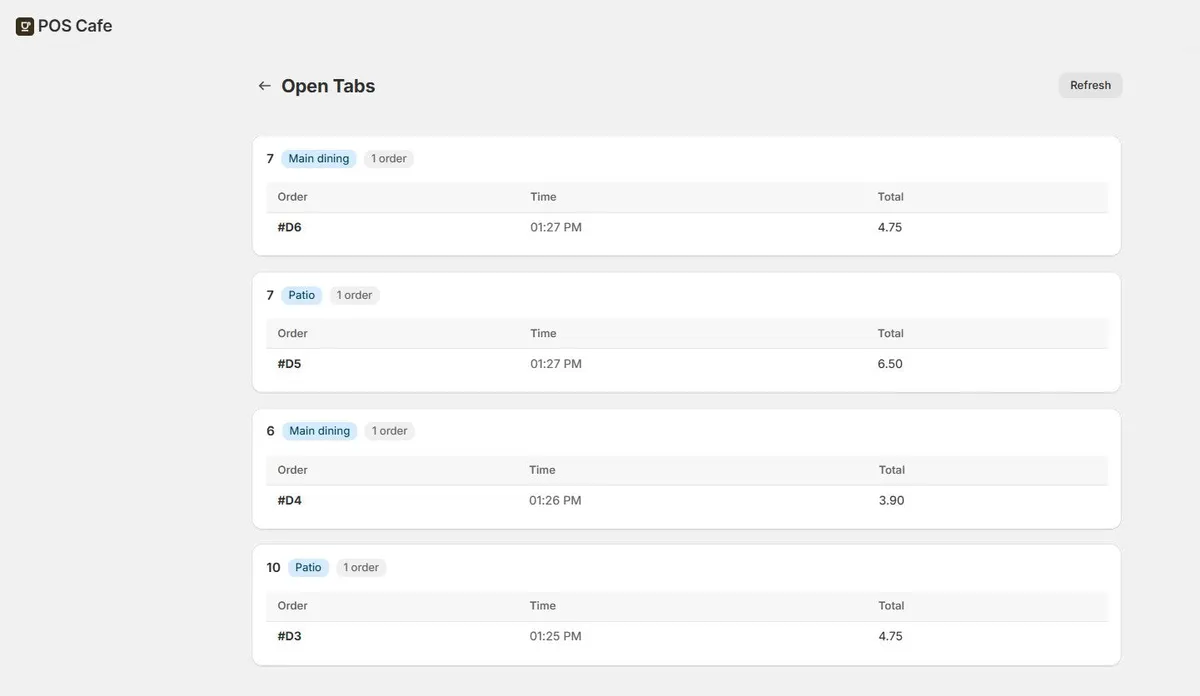
The Open Tabs page lists the open draft orders at a location, grouped by table, with when each was started and its total.

Staff can see at a glance which tables still have to pay.

The Open Tabs page in POS Cafe: one card per table, such as table 7 in Main dining and table 10 on the Patio, each listing its open order with the time it was started and the total

Online ordering

Let tables order from their phones

Put a QR code on each table. Scanning it opens your online menu already set to that location and table, so customers can order and pay without waiting.

The order arrives as a regular Shopify order with the table attached, and goes to your printers and screens like any other.

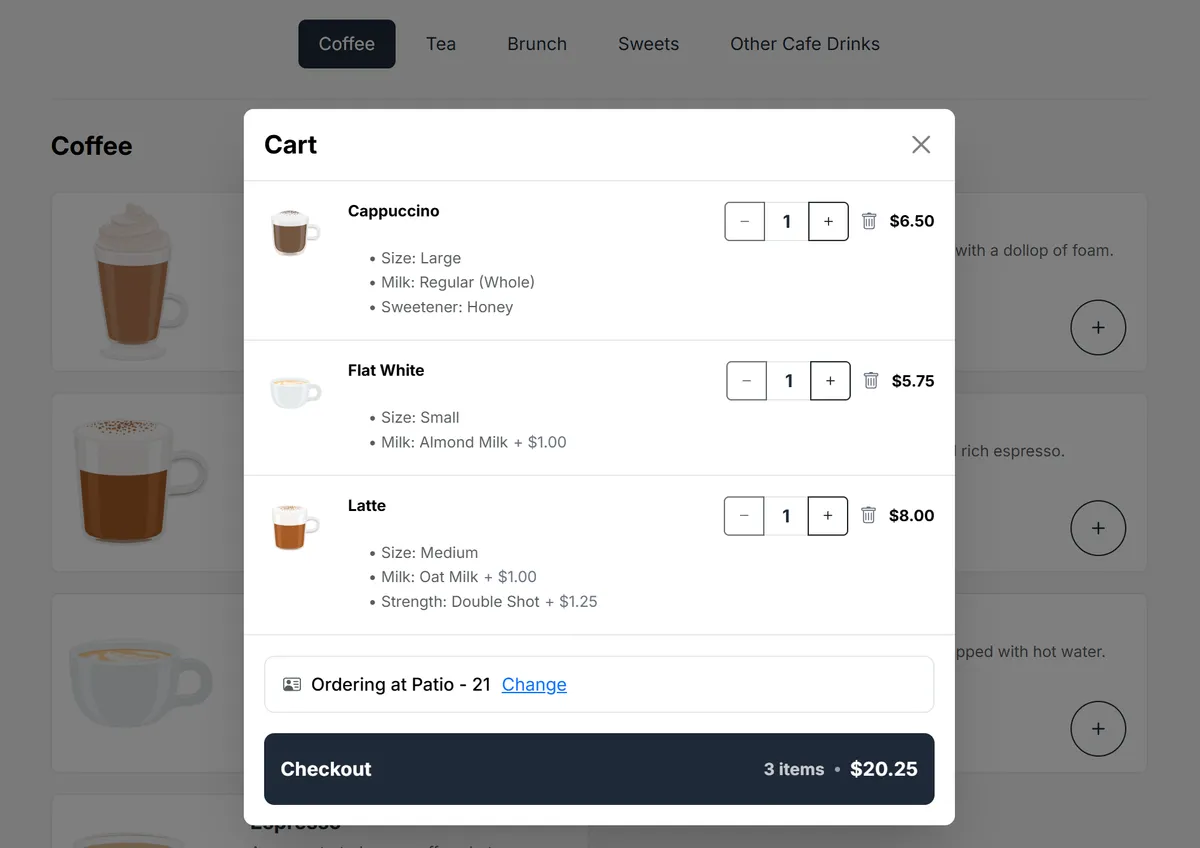
The POS Cafe online ordering cart opened from a table QR code, showing three customised coffees and the line Ordering at Patio - 21 above the Checkout button

Questions

Open tabs and table service questions

Can staff send orders to the kitchen before the customer pays?
Yes. Tap Send to prep for each round, or save the cart as a draft order. The customer pays whenever they’re ready. Learn more: Can staff send orders to the kitchen before the customer pays?
Will items print again when the tab is paid?
No. At checkout POS Cafe prints only what hasn’t been sent. If it can’t confirm a send, it prints those items anyway, so the kitchen may rarely get a repeat but never misses one. Learn more: Will items print again when the tab is paid?
Does it work with the printer connected to Shopify POS?
Yes, with the Send to prep tile: the POS device prints its own copy straight away. Saving a draft doesn’t print on a Shopify POS printer, so use Send to prep for each round. Learn more: Does it work with the printer connected to Shopify POS?
Can customers order from their table with a QR code?
Yes. Each table has a QR code that opens your online menu set to that table. The customer pays online and the order arrives with the table attached. Learn more: Can customers order from their table with a QR code?
What if a customer changes their mind after a round is sent?
Remove the item from the cart and let the kitchen know: sent tickets are never cancelled, and the Send to prep tile shows a reminder to tell them. Learn more: What if a customer changes their mind after a round is sent?
Do I have to set up tables?
No, open tabs work without them. Tables record the table on each order, list tabs by table on the Open Tabs page, and give each table a QR ordering link. Learn more: Do I have to set up tables?

Try POS Cafe free for 21 days

Install from the Shopify App Store, add the Send to prep tile, and run your first open tab during the trial.