
Building Your Menu
Your POS Cafe online ordering menu is assembled from three building blocks: collections (the sections), products (the items), and modifier sets (the options customers choose). Here’s how they fit together, and what’s needed for them to appear online.
Collections = menu sections
Section titled “Collections = menu sections”Each collection becomes a section on the menu (for example, “Coffee”, “Tea”, “Cafe Food”), shown as tabs at the top. The order of your collections is the order customers see, so arrange them the way you’d read a menu.
Each location uses your global menu by default. To give a location its own menu, open the location and go to Location Setup → Location Menu, then turn on the custom menu (the card reads “Using your global menu. Turn on to customise this location’s menu.”) and use Add / Edit Collections. The location shows a Custom Menu Enabled or Using Global Menu badge.
Products = menu items
Section titled “Products = menu items”Products are the items in each collection. Their name, description, image and price all appear on the menu card. Prices and availability are shown live from your store.
Modifier sets = customisation
Section titled “Modifier sets = customisation”Modifier sets are the choices a customer makes when adding an item, such as size, milk, syrups and strength. Assign modifier sets to your products and they appear in the product window when a customer taps an item.
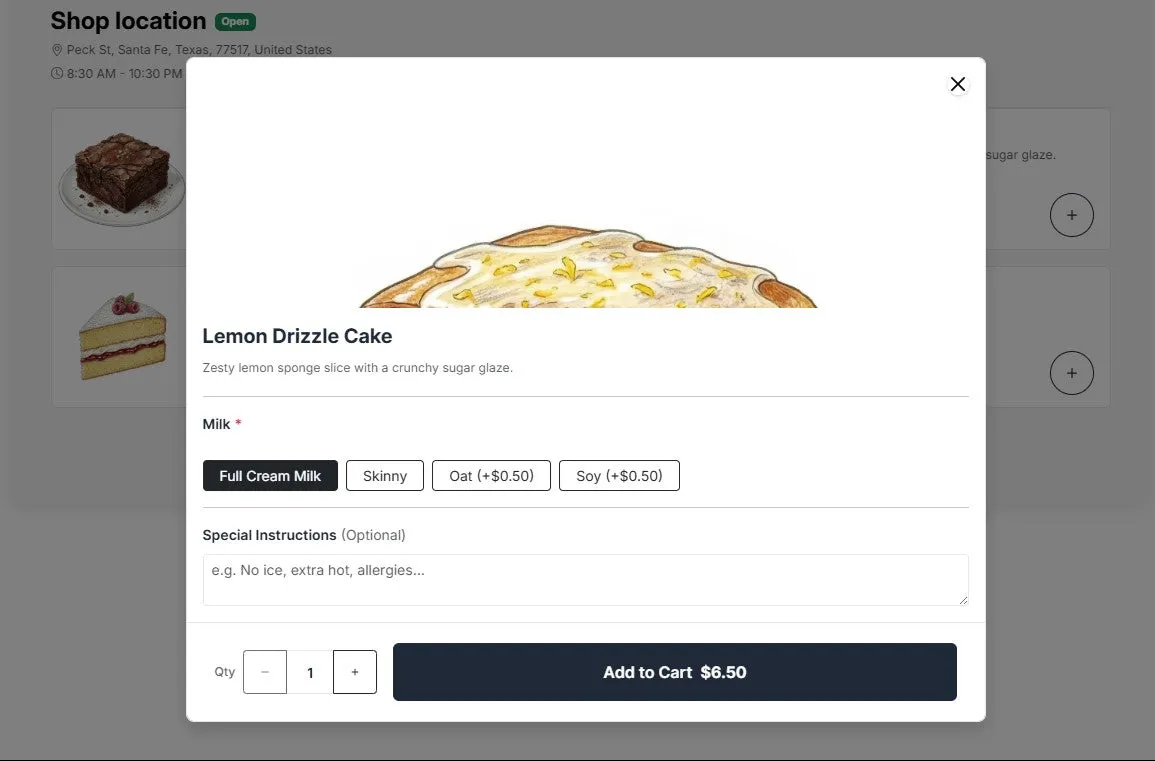 How modifiers look to a customer.
Making items available online
Section titled “Making items available online”The online ordering menu only shows what’s available on your Shopify Online Store sales channel:
- Products: open a collection from Cafe Collections, select the products, then choose Online → Show in online store (or Hide from online store) from the bulk actions.
- Modifier sets: open the modifier set and set its Online Sales Channel card to Enabled.
- Collections: a collection’s products only appear online when the collection is available to the Online Store. If none are, the Online ordering menu card in Settings → General Online Ordering Settings shows No Online Store menu.
The Show in online store and Hide from online store actions need your sales channel to be set. Check the Online Store Sales Channel row in Settings → Admin Settings, and use Re-detect channels if it isn’t set.
When changes go live
Section titled “When changes go live”When you save a change that affects the menu (reordering collections, editing products or modifiers, or updating location settings), the app re-publishes your menu to the storefront automatically. Collection, product and modifier edits publish a few moments later, and several quick edits are batched so they publish together.