Editing Items in the Cart
To set up the ability to edit items in the cart, Shopify requires you to manually give the POS Cafe extension permission.
Give POS Cafe permission to edit cart items
Section titled “Give POS Cafe permission to edit cart items”-
Open the POS app settings. In your Shopify admin area, go to Sales Channels → Point of Sale → Settings in the left column, then choose POS app in the main window of the screen.
-
Enable POS Cafe. On the next screen, click the app icon at the top, then enable POS Cafe.
-
Resync your data. You may need to resync your data in the Shopify POS app by tapping the connectivity icon, then Store data, and Refresh all.
Edit an item in the cart
Section titled “Edit an item in the cart”-
Tap the item. Tap on a POS Cafe item that has been added to the cart to open its information pop-up.
-
Tap Edit item. A menu will slide up from beneath the cart. Tap Edit item.
-
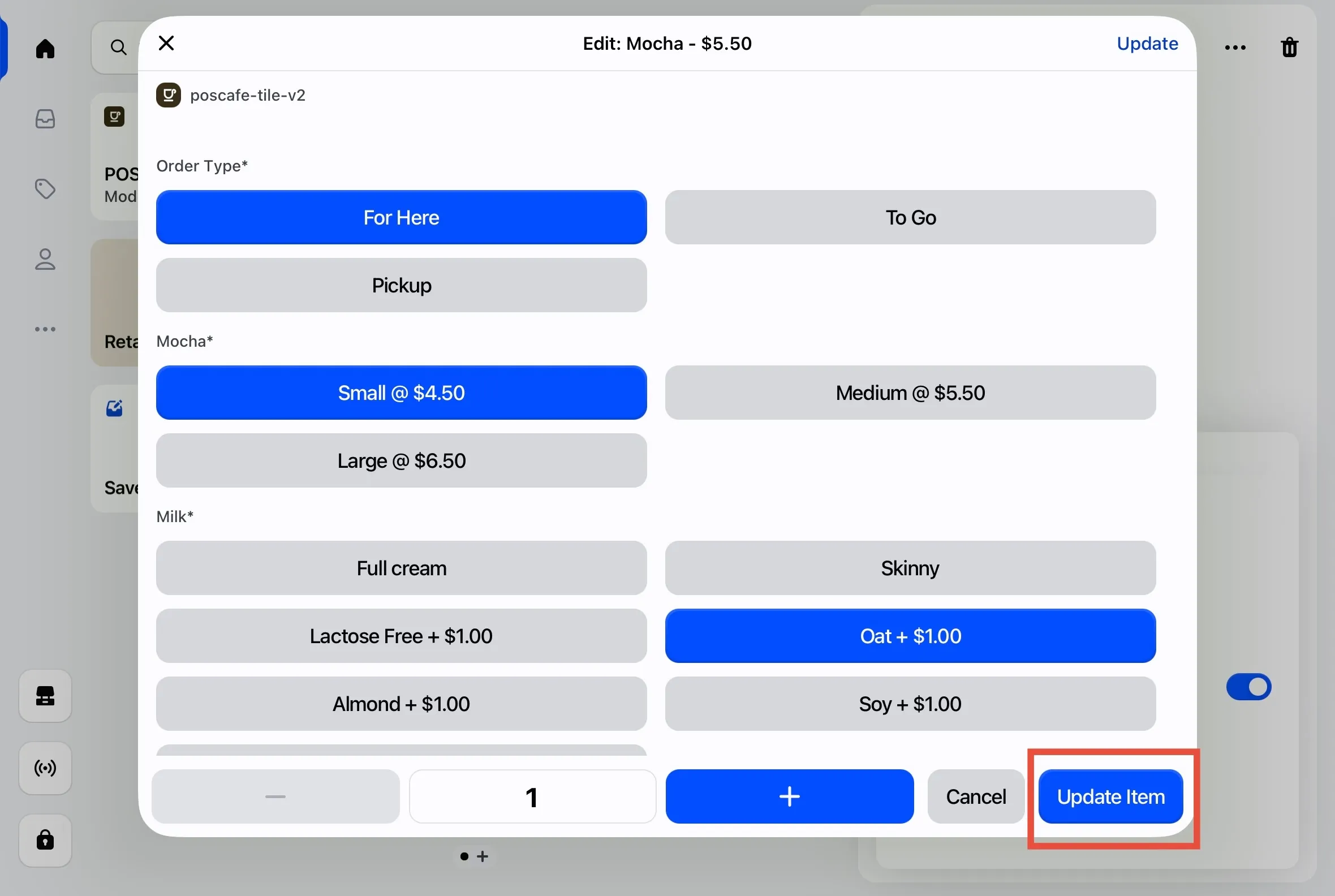
Update the item. Edit your item as desired and tap Update Item, or tap Cancel to leave it unchanged.