Skip to content

Kitchen printing and KDS

Every order to the right station, on paper or on screen

POS Cafe sends each item from Shopify POS, your online store and kiosks to the station that makes it: drinks to the barista, food to the kitchen. Print tickets on Epson, Star or Shopify POS receipt printers, or show them on Fresh KDS screens.

Works on any Shopify plan, with Shopify POS Lite or Pro.

BARISTA

FOR HERE · Table 4

Order #104410:42 am

  • 1 x Cappuccino (8 oz)- Oat milk- Extra shot
  • 1 x Flat white (12 oz)

Note: one extra hot

Kitchen screen2 orders

#1044 · For Here2:15

Table 4

  • 1 x Bacon roll
  • + Extra bacon
  • 1 x Carrot cake

#1045 · Drive Thru0:40

Vehicle: Blue Toyota Corolla

  • 1 x Ham and cheese toastie
Order 1044 for table 4 is split by prep area: the cappuccino and flat white print on the barista's ticket printer with their sizes and modifiers, while the bacon roll and carrot cake appear on the kitchen screen, next to a Drive Thru order showing the customer's car.

How it works

Set it up once, then every order routes itself

Orders from the counter, online ordering, Cloudshelf kiosks and open tabs all follow the same prep areas, so there’s one setup to maintain.

  1. Name your stations

    Create a prep area for each station that makes your menu, such as Barista, Kitchen or Smoothie bar.

  2. Give each product a prep area

    Assign a prep area to each POS Cafe product, one at a time or several at once from Cafe Collections.

  3. Choose what each printer or screen gets

    At each location, tick the prep areas every printer and Fresh KDS screen should receive.

Choose your setup

Printers, screens, or both

Use one option or combine them. An item goes to every printer and screen that has its prep area, so the kitchen can work from a screen while the barista keeps a printed docket.

Most cafes

Cloud receipt printers

An Epson or Star receipt printer collects tickets from POS Cafe’s print server over the internet.

  • Prints every order at the location: counter, online, kiosk and open tabs
  • Nothing to install on the POS device, and no computer to keep running
  • Up to 3 copies, or one item per ticket for cup labels
One counter

Shopify POS printer

Prep tickets print on the receipt printer already connected to your Shopify POS device.

  • No extra hardware or print server setup
  • Prints the orders taken on that POS device
  • Needs Shopify POS 11.11 or later
Paperless

Fresh KDS screens

Kitchen and barista display screens replace paper tickets.

  • Each screen shows only the prep areas you choose
  • Gets every order at the location, like cloud printers
  • Drive Thru and Curbside orders show the customer’s car

Built for busy service

Tickets your team can rely on

  • Send to prep before payment

    Send each round from a table or open tab with one tap. Only new items go to the kitchen, and the customer pays when they’re ready.

  • Online and kiosk orders too

    Online ordering and Cloudshelf kiosk orders reach the same printers and screens as orders at the counter.

  • Everything on the ticket

    Sizes, modifiers, the order type, the table and the order note, so the team makes it right the first time.

  • Labels for every cup

    Print one item per ticket on a label printer such as the Epson TM-L100, and stick it straight on the cup.

  • Pause a station

    Pause a printer when a station closes or the paper runs out, and resume it when you’re ready.

  • See problems before service

    Check which printers are online, how many tickets are waiting, and whether any prep area has nothing to print it.

  • Tickets that catch up

    An offline printer prints its waiting tickets when it reconnects, and items a printer refuses at checkout go through normal order printing.

  • Route other Shopify products

    Send selected Shopify products added outside POS Cafe, to the right station as well.

In the POS Cafe admin

Every printer at a location, on one page

Add Epson, Star and Shopify POS printers, choose their prep areas, and pause or resume them.

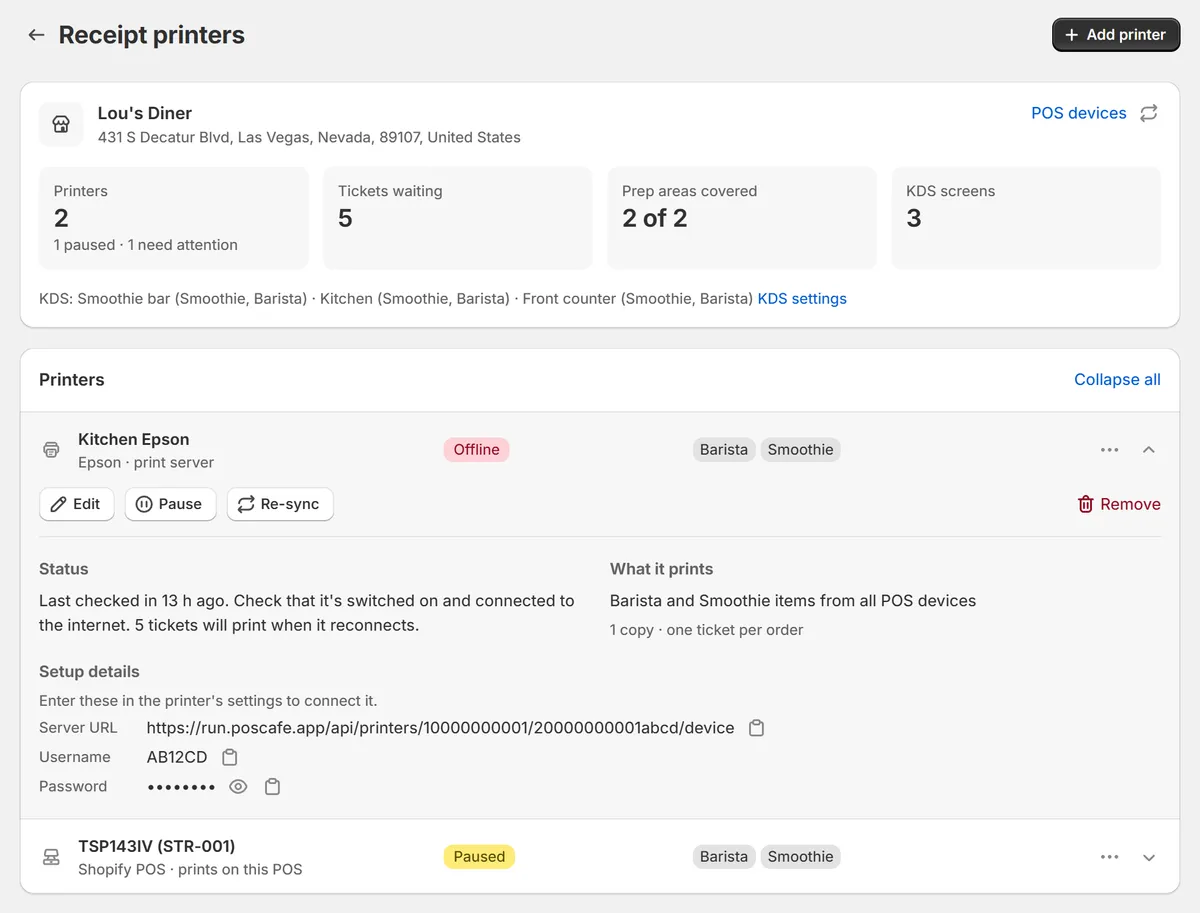
Each printer shows whether it’s online and how many tickets are waiting, and the page warns you when a prep area has nothing to print it.

The Receipt printers page in POS Cafe: counts of printers, waiting tickets, prep areas covered and KDS screens, then an Epson print server printer marked Offline with 5 tickets that will print when it reconnects, and a paused Shopify POS printer

Questions

Kitchen printing questions

Which printers work with POS Cafe?
Epson TM-Intelligent printers with Server Direct Print (such as the TM-m30III and TM-T88V-i), Star printers with CloudPRNT, and any receipt printer Shopify POS supports, used as a Shopify POS printer. Learn more: Which printers work with POS Cafe?
Do I need a computer or print server in the cafe?
No. Epson and Star printers collect tickets from POS Cafe’s print server over the internet, so there’s nothing to install or keep running in store. Learn more: Do I need a computer or print server in the cafe?
Do online orders print in the kitchen?
Yes, on cloud printers and Fresh KDS: they get every order at the location, including online ordering and Cloudshelf kiosks. A Shopify POS printer prints only the orders taken on its own POS device. Learn more: Do online orders print in the kitchen?
Can tickets print before the customer pays?
Yes. Tap Send to prep to send a round from an open tab or table. Cloud printers and Fresh KDS also get tickets when a draft order is saved. Learn more: Can tickets print before the customer pays?
Can I use printers and Fresh KDS together?
Yes. An item goes to every printer and screen that has its prep area, so the kitchen can work from a screen while the barista keeps a printed docket. Learn more: Can I use printers and Fresh KDS together?
What happens if the internet or a printer drops out?
Tickets for an offline printer wait on the print server and print when it reconnects. Orders taken while a POS device is offline aren’t printed or sent to Fresh KDS, so pass those to the kitchen by hand. Learn more: What happens if the internet or a printer drops out?

Try POS Cafe free for 21 days

Install from the Shopify App Store, set up your prep areas, and send your first kitchen ticket during the trial.