
Table Management: Getting Started
POS Cafe table management lets you organise your venue into dining areas and tables, give every table its own online-ordering QR link, and keep track of open tabs. It ties your in-person Shopify POS together with your online ordering menu, so an order can be tied to a specific table.
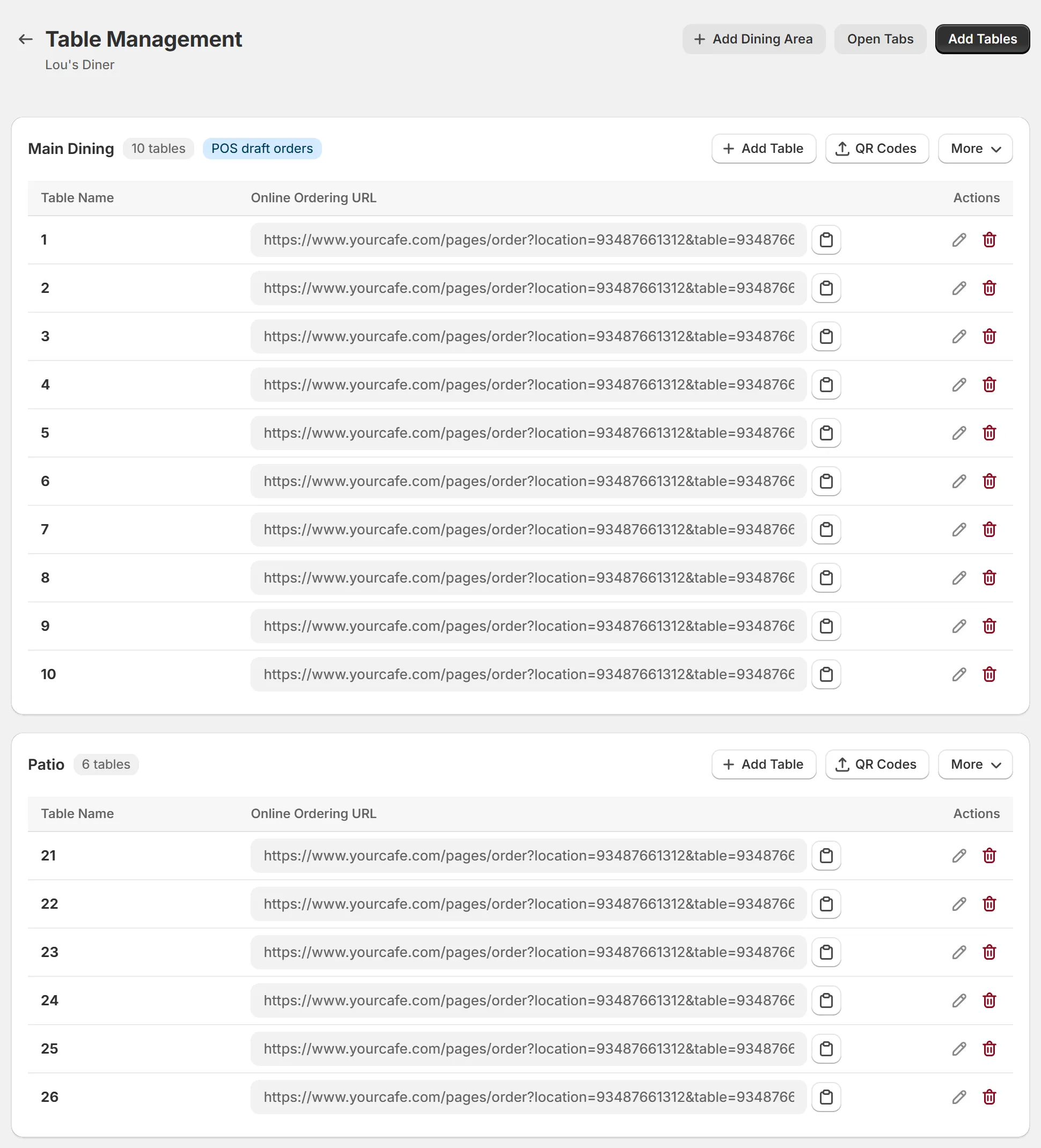
Captured September 2026.
Features
Section titled “Features”| Term | What it means |
|---|---|
| Dining area | Create and organise your tables based on the physical spaces in your venue (such as “Patio” or “Main Dining”) to keep your floor plan structured and efficient. |
| Table | Easily create and assign each of your tables within an area. Every table is linked to a specific dining area and comes with its own unique name, a dedicated online-ordering link, and a custom QR code. |
| Online Ordering URL | The per-table deep link to your menu (pre-set to that location and table). Shown as a copyable field on each table, and downloadable as a QR code. |
| Add tables to POS draft orders | A setting on each dining area. When it’s on and you select a table from that area in Shopify POS, POS Cafe adds the table’s name to the order as a $0 line so it shows in your draft orders list. The table details are recorded on the order whether this setting is on or off. |
| Open Tabs | A page that lists your open Shopify draft orders from POS, grouped by the table they’re assigned to. |
How it connects
Section titled “How it connects”- In POS: selecting a table in the POS Cafe tile records the table on the order. For areas with Add tables to POS draft orders turned on, it also adds the table’s name as a $0 line so your team can tell tabs apart. See POS Draft Orders.
- Online: a customer scans a table’s QR code and lands on your menu, already set to that location and table. They check out as normal, so the result is a regular Shopify order with the table attached. See QR Codes & Online Ordering URLs.
- Open Tabs: open POS draft orders that have a table assigned appear on the Open Tabs page. Online orders don’t appear there, because they’re completed orders rather than drafts.
Before you start
Section titled “Before you start”- You have a location set up.
- For QR codes / order links, set your Online ordering page URL first (Settings → General Online Ordering Settings). See QR Codes & Online Ordering URLs.
Quick start
Section titled “Quick start”- Open Table Management. Go to Locations, open a location, then select Table Management.
- Create your tables. Use Add Tables to add a whole area of tables at once. (Adding Tables in Bulk)
- Download & print QR codes. Place one on each table so customers can scan to order. (QR Codes & Online Ordering URLs)
- (Optional) Turn on POS draft orders. For dine-in areas, so table names show as a line on POS orders. (POS Draft Orders)
- Track activity. Check open POS tabs on Open Tabs.