
QR Codes & Online Ordering URLs
Every POS Cafe table has its own online-ordering link: a deep link to your menu, pre-set to that location and table. You can copy the link from the table list, or download printable QR codes. When a customer scans, the menu opens ready for “For Here” ordering at that table.
What a table link / QR does
Section titled “What a table link / QR does”A table’s link points to your online ordering page with the location and table built in. On scan, the storefront selects the right location and table (shown with the table’s area and name, matching POS) and the table is recorded on the order (as Table Number in the order’s additional details).
The customer then checks out as normal, so the order arrives as a regular Shopify order with the table details attached. Online orders don’t appear on Open Tabs, which only lists open Shopify draft orders from POS.
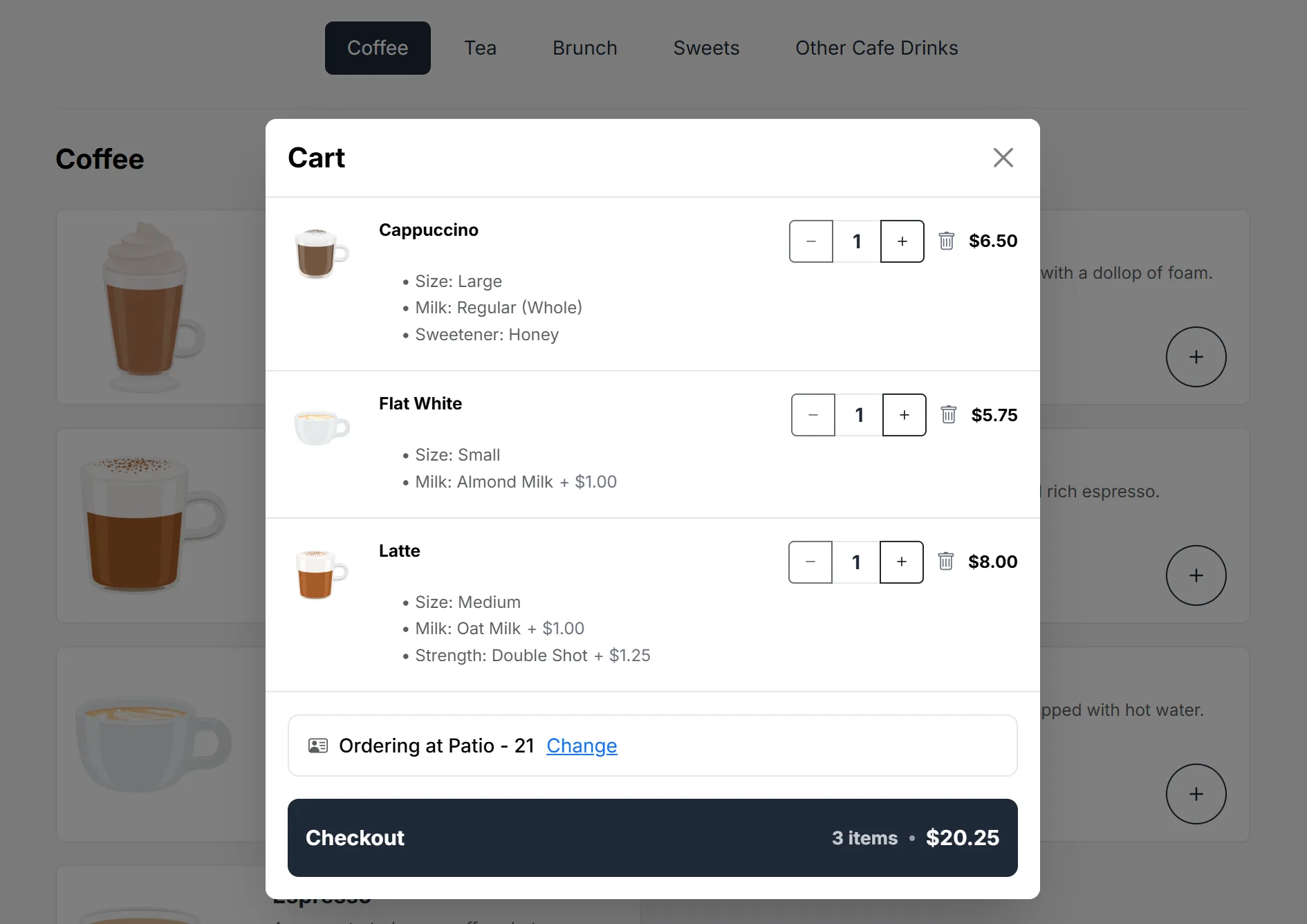
Captured September 2026.
Before you generate QR codes or links
Section titled “Before you generate QR codes or links”Copying a single table’s link
Section titled “Copying a single table’s link”On the Table Management page, each table’s Online Ordering URL column shows a read-only field with a copy button. Use it to grab one table’s link, which is handy for a quick test, a digital menu, or a single reprint.
Downloading QR codes
Section titled “Downloading QR codes”Two places produce printable QR codes, both as a ZIP of PNG images:
- Per dining area: on the area card, choose QR Codes (on smaller screens, Download QR codes in the area’s Actions menu). This produces a ZIP with one image per table in that area.
- From Add Tables: right after creating a batch of tables, choose Download QR Codes (ZIP).
Printing & placing
Section titled “Printing & placing”- Print each table’s PNG at a size that’s easy to scan from a seated position.
- Place the correct code on its matching table (the file is named after the table).
- A small sign or table tent works well, ideally with a short “Scan to order” prompt.
Renaming tables & reprinting
Section titled “Renaming tables & reprinting”Each table’s link includes the table’s name, so after renaming a table (or changing your setup) re-download and reprint that area’s codes so everything stays in sync. See the FAQ in Troubleshooting.