POS Draft Orders
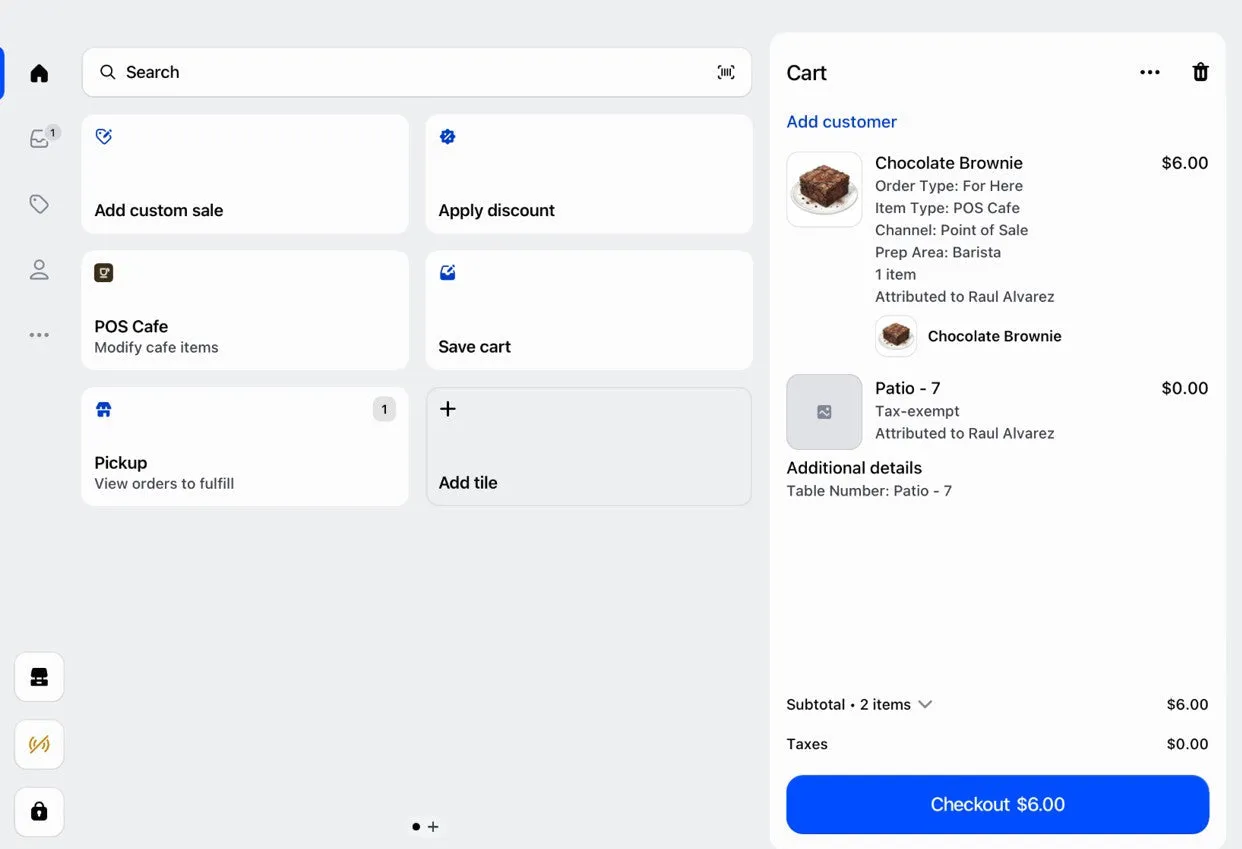
The POS Cafe Add tables to POS draft orders setting adds a table’s name to Shopify POS orders as a $0 line, so open tabs are easy to tell apart in your Shopify draft orders list. It’s controlled by a single setting on each dining area.
The setting: “Add tables to POS draft orders”
Section titled “The setting: “Add tables to POS draft orders””This lives on the dining area (not the individual table), so it applies to every table in that area. When it’s on:
Selecting any table in this area in Shopify POS adds its name to the order as a no-charge custom item, so the table name shows in your draft orders list and open tabs are easy to tell apart.
The added line is $0. It doesn’t affect the order total; it’s purely a label so you can see which table an order belongs to.
Turning it on
Section titled “Turning it on”- For a new area: tick Add tables to POS draft orders in the Create Dining Area modal (opened with Add Dining Area), or during the Add Tables flow.
- For an existing area: open the area’s More → Edit area and toggle it.
Areas with it on show a “POS draft orders” badge on their card, so you can see at a glance which areas are set up for it.
How it flows
Section titled “How it flows”- An area has Add tables to POS draft orders turned on.
- In Shopify POS, your staff select a table from that area in the POS Cafe tile.
- POS Cafe records the table on the order and adds the table’s name to the cart as a $0 custom item.
- When the order is saved as a draft, the table name shows in your draft orders list.
- The open draft also appears on Open Tabs, grouped by table.
If staff switch to a different table, the old table line is replaced with the new one. Selecting a table in an area with the setting off removes any leftover table line.