
Open Tabs
The POS Cafe Open Tabs page shows what’s currently open at each table: open Shopify draft orders from POS that have a table assigned, grouped so you can see every table’s running tab at a glance. Open it with the Open Tabs button on the Table Management page.
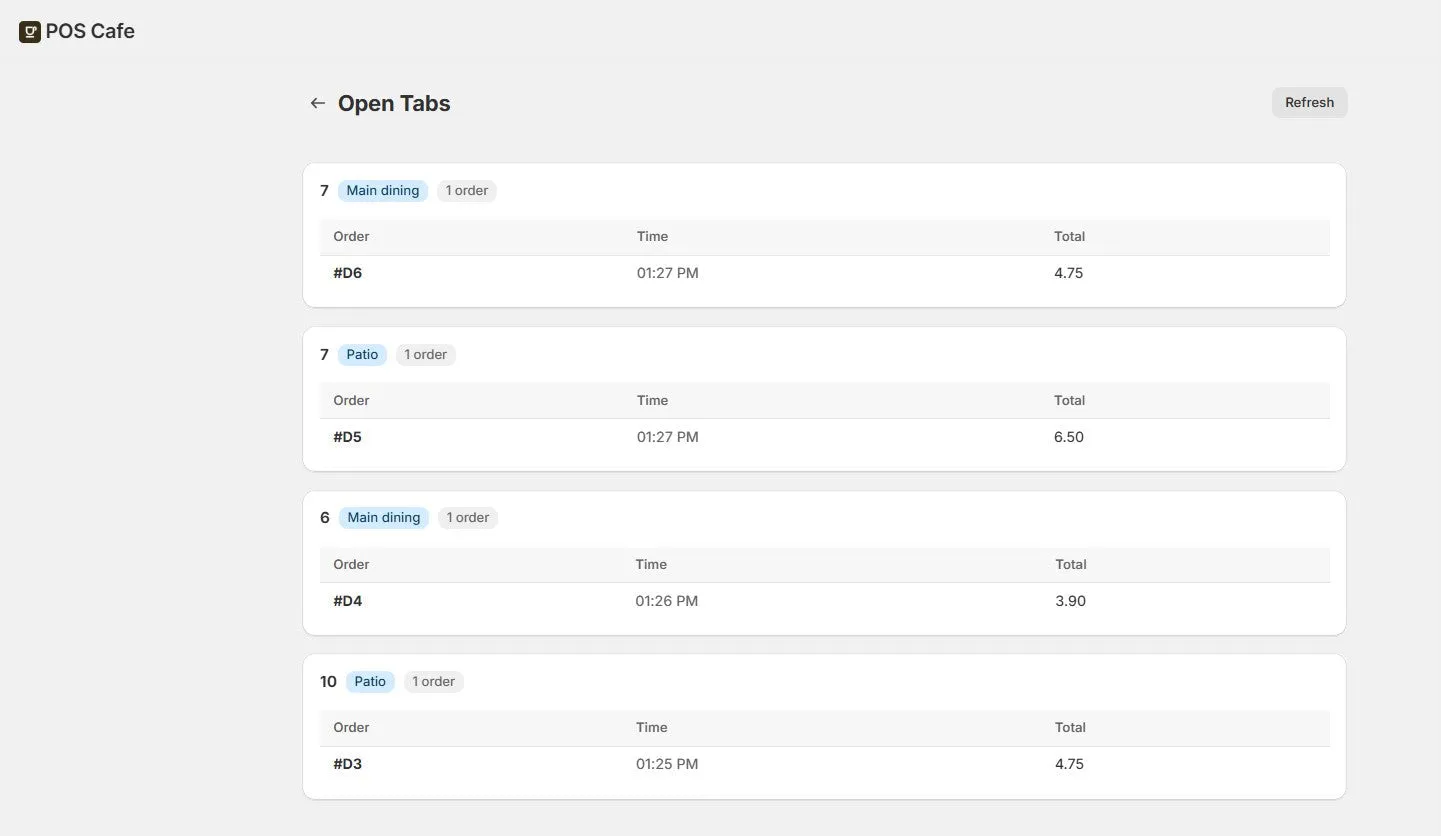
What you’ll see
Section titled “What you’ll see”- One card per table that has an open order, showing the table name, its dining area, and a count of orders.
- For each order: its Order name, the Time it was started, and the Total.
- A Refresh action to pull the latest.
Draft orders that record a different location are left out, so you see the tabs for the location you’re viewing.
How orders get onto a table
Section titled “How orders get onto a table”An order appears here when it’s an open Shopify draft order with a table assigned. That happens when your staff select a table in the POS Cafe tile in Shopify POS and then save the order as a draft.
The table is recorded on the order whether or not the area’s Add tables to POS draft orders setting is on. That setting only adds the table’s name as a $0 line so it’s easy to spot in Shopify’s draft orders list. See POS Draft Orders.
Limits & refresh
Section titled “Limits & refresh”Open Tabs reads your 100 most recently updated open draft orders. If you have more than that, a note (“Showing tabs from the 100 most recently updated open draft orders.”) appears and older tabs may not be listed. Use Refresh to re-check.
If nothing appears
Section titled “If nothing appears”If the page is empty, there aren’t any open draft orders with a table assigned yet. You may also see a note that some open drafts were found “but none had a table assignment”. That means those drafts were saved without a table being selected in the POS Cafe tile.