
Receipt Printers Page
The POS Cafe Receipt printers page is where you add and manage the receipt printers at one location. It shows how each printer is doing, which prep areas are covered, and how many tickets are waiting to print, and it lets you pause, resume, re-sync or remove a printer.
Open the Receipt printers page
Section titled “Open the Receipt printers page”- In your Shopify admin, go to Apps → POS Cafe → Locations.
- Select your location.
- In the Devices section, click Receipt Printers (Set up and manage receipt printers for this location).
Every change on this page is saved straight away. There’s no save bar and no Save changes button.
At a location with a Shopify POS printer, a reminder at the top of the page says: “Add the Send to prep tile to your POS home screen so staff can see and reprint kitchen tickets.” The tile prints tickets after staff tap Done and lists any that didn’t print. Click the reminder’s close button to dismiss it; it stays hidden in that browser.
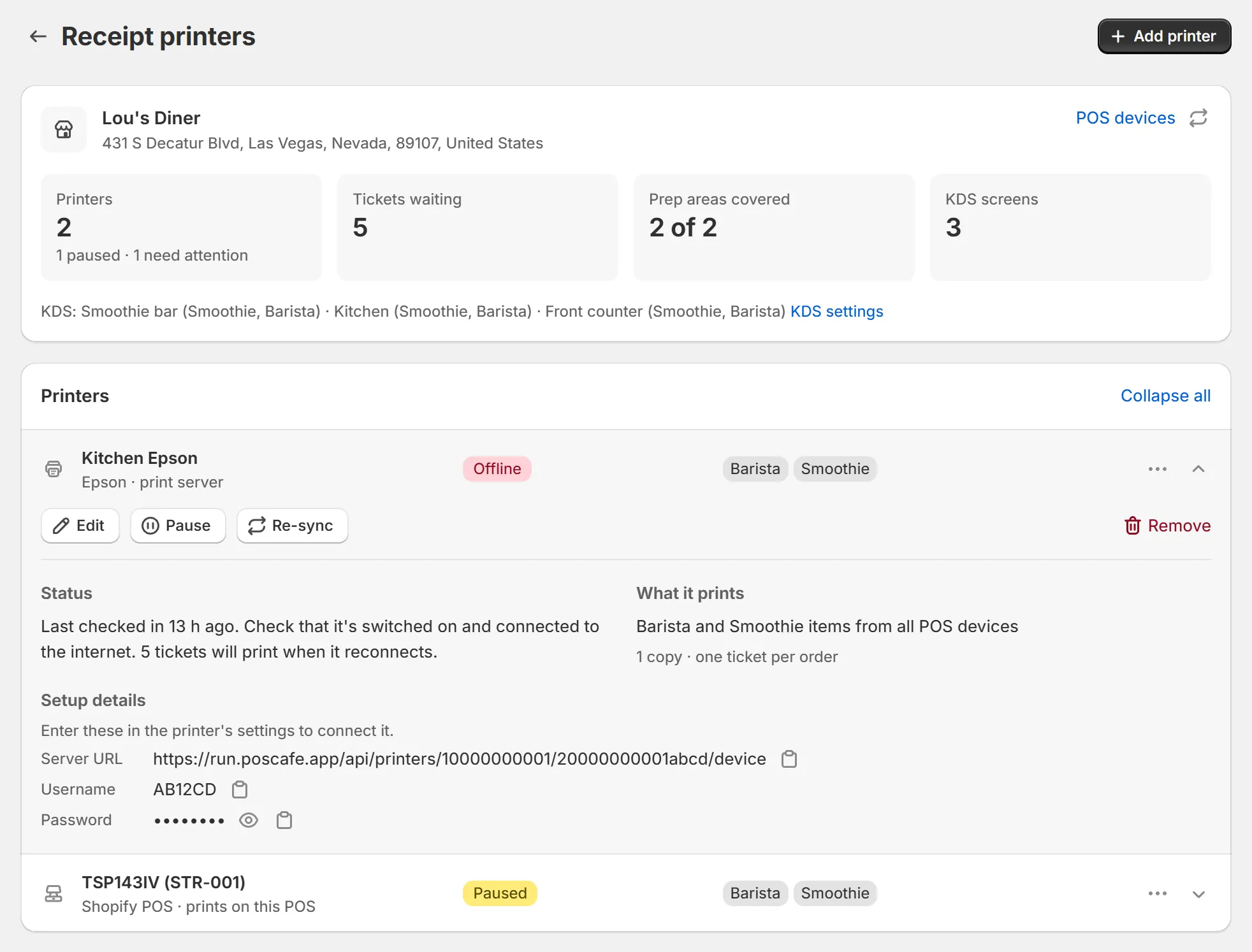
Captured September 2026.
Location summary
Section titled “Location summary”The card at the top of the page shows the location’s name, address and time zone, plus four figures:
| Figure | What it shows |
|---|---|
| Printers | How many printers this location has, with how many are paused or need attention, and how many tickets may not have printed fully (see Tickets to check). |
| Tickets waiting | Tickets queued on the print server that haven’t printed yet, across all printers. |
| Prep areas covered | How many of your prep areas have an active printer or Fresh KDS screen here, for example 2 of 3. |
| KDS screens | How many Fresh KDS screens are set up at this location. |
Use the refresh button to check printer status again, and click POS devices to open the location’s registered POS devices (see Registering POS Devices). If the location has Fresh KDS screens, they’re listed under the figures with a KDS settings link.
Some items won’t print at this location
Section titled “Some items won’t print at this location”If a prep area has nothing to print it, the card shows a Some items won’t print at this location warning that lists each prep area and the reason:
| Reason shown | What it means | What to do |
|---|---|---|
| [printer] is paused | The only printer for this prep area is paused. | Resume the printer when you’re ready, or add the prep area to another printer or KDS screen. |
| only a Shopify POS printer, for its own orders | Only a Shopify POS Printer serves this prep area, so it prints only orders taken on its own POS device. | Add the prep area to an Epson or Star printer, or a Fresh KDS screen, if other orders need it. |
| used by your menu, but no printer or KDS here serves it | Items in your menu use this prep area, but no printer or KDS screen at this location has it. | Edit a printer and tick the prep area under Prep Areas, or add it to a Fresh KDS screen. |
| no active printer or KDS | No active printer or KDS screen at this location serves this prep area. | Add the prep area to an active printer or KDS screen. |
| Items without a prep area: no active printer here | POS Cafe items with no prep area normally print on every active Epson or Star printer, and there isn’t one. | Resume or add a printer, or give those items a prep area. |
If POS Cafe can’t reach the print server, you’ll see “Couldn’t reach the print server, so live printer status isn’t shown. Printing isn’t affected.”
The Printers list
Section titled “The Printers list”Each printer shows its name, its type, one status badge and up to four of its prep areas. The type appears under the name as Epson · print server, Star · print server or Shopify POS · prints on this POS. Click a printer to expand it, or use Expand all and Collapse all. The … button on each printer opens its actions: Edit, Pause or Resume, Clear waiting tickets, Re-sync with print server and Remove.
Printer status badges
Section titled “Printer status badges”| Badge | What it means | What to do |
|---|---|---|
| Online | The printer is checking in with the print server and printing normally. | Nothing. |
| Ready | A Shopify POS printer. It prints on the POS device it’s paired with, and its status is shown in Shopify POS. | Nothing. See Shopify POS Printer. |
| Paused or Paused · 3 waiting | You’ve paused the printer. New tickets aren’t printed on it. The number is how many earlier tickets are waiting. | Resume it when you’re ready (see Pause and resume a printer). |
| Offline | The printer hasn’t checked in recently. | Check that it’s switched on and connected to the internet. Waiting tickets print when it reconnects. |
| Not connected yet | The printer has never connected to the print server. | Enter the Setup details in the printer’s own settings. See Epson Server Direct Print or Star CloudPRNT. |
| Not on print server | The print server doesn’t know about this printer, so it can’t print. | Click Re-sync. |
| Out of sync | The print server has a different paused or active setting from the one in POS Cafe. | Click Re-sync. |
| Inactive | The printer is inactive and doesn’t print. | Contact POS Cafe support if you weren’t expecting this. |
| Status unavailable | POS Cafe couldn’t reach the print server to check this printer. | Try again shortly with the refresh button. Printing isn’t affected. |
| Checking… | The page is still loading the printer’s status. | Wait a moment. |
An Epson printer can also show a second badge, for example 1 ticket to check. See Tickets to check.
Printer details
Section titled “Printer details”When you expand a printer you’ll see its actions (Edit, Pause or Resume, Re-sync and Remove) and three sections:
| Section | What it shows |
|---|---|
| Status | What’s going on with the printer and what to do, for example “Printing normally. Last checked in 2 min ago.” If tickets can be cleared, a Clear 3 waiting tickets button appears here. |
| What it prints | Which prep areas it prints and from which POS devices, for example Coffee and Food items from all POS devices, then the copies and ticket layout, for example 1 copy · one ticket per order. |
| Setup details | For Epson and Star printers: the Server URL, Username and Password to enter in the printer’s settings. Each has a copy button, and the password has a show button. Shopify POS printers have nothing to enter. |
Tickets to check
Section titled “Tickets to check”Sometimes an Epson printer keeps timing out on one ticket: it starts printing but never confirms it finished. Rather than print that ticket again and again, POS Cafe stops retrying it after three tries. The ticket may have printed only partly.
When this happens, the printer shows a badge such as 1 ticket to check. When you expand the printer, a Check these orders warning appears at the top of its details:
- It says how many tickets in the last 24 hours may not have printed fully.
- It links to each order, for example #1042, so you can open it in Shopify and check the kitchen has everything. An open tab opens as a draft order.
- Tickets sent with Send to prep are counted but not listed, and only the 10 most recent orders are shown.
The badge clears by itself 24 hours after the last ticket POS Cafe stopped retrying. If it keeps appearing, check the printer’s paper, connection and power, and see Epson Server Direct Print.
Add or edit a printer
Section titled “Add or edit a printer”Click Add printer at the top of the page to open the Add new printer window. To change a printer, click Edit in its details or in its … menu.
| Field | What it does |
|---|---|
| Printer Name | A name you’ll recognise, such as Barista Printer. For a Shopify POS printer this field is called Printer name in Shopify POS. |
| Printer Type | Epson, Star or Shopify POS (Printing API). Choose the type that matches your printer: Epson and Star printers each get their own Server URL. |
| Copies | How many copies of each ticket to print, from 1 to 3. |
| Print Individual Receipts (optional) | Prints one item per ticket. Ideal if you use sticker labels that go on individual cups. |
| Prep Areas | The prep areas this printer prints. At least one is required. |
| Device Source | Epson and Star printers only. Print from all POS devices (recommended), or Print from specific POS devices only (advanced) to choose registered POS devices and POSCafe Online (Web) orders. See Registering POS Devices. |
Click Add printer (or Save when editing). The window closes once the printer is saved, and you’ll see Printer added or Printer saved.
After you add a Shopify POS printer, the page shows: “POS devices pick this up within 4 hours. To update a device now, fully close and reopen the Shopify POS app, or open Send to prep and tap Check printer setup again.” After you resume one, it says the same with “within 15 minutes”. Devices where Send to prep was already available usually pick up a new printer within about an hour.
Pause and resume a printer
Section titled “Pause and resume a printer”Pausing a printer stops it receiving new tickets, for example while it’s being repaired or a station is closed. Other printers and Fresh KDS screens keep working.
- Click Pause in the printer’s details or its … menu.
- Read the Pause printer? window, then click Pause printer.
While a printer is paused:
- Tickets for new orders aren’t printed on it. They are not saved for later: orders taken while it’s paused won’t print on this printer when you resume.
- Tickets that were already waiting are kept. They print when you resume, as long as that’s within 24 hours of each order.
- Send to prep skips the paused printer. See Send to Prep.
To resume, click Resume, then Resume printer. If tickets are waiting, tick I understand these 3 tickets will print when this printer resumes. first. You can clear the waiting tickets instead (see below) if you don’t want them to print.
Clear waiting tickets
Section titled “Clear waiting tickets”Epson and Star printers can have tickets waiting on the print server. To remove them, click Clear waiting tickets in the printer’s … menu (or the Clear 3 waiting tickets button in its Status section). The Waiting tickets window shows how many there are.
- Click Clear waiting tickets.
- Check the count, then click Clear 3 tickets, or Keep them to leave them.
Cleared tickets won’t print, and this can’t be undone. What gets cleared depends on the printer:
| Printer | What is cleared |
|---|---|
| Paused | Every waiting ticket. |
| Active | Only tickets not yet sent to the printer. A ticket printing right now finishes. |
If every waiting ticket has already been sent to an active printer, you’ll see “Every waiting ticket has already been sent to the printer, so there’s nothing to clear here. Pause the printer to clear its whole queue.”
Re-sync with print server
Section titled “Re-sync with print server”Re-sync with print server sends the printer’s current setting (active or paused) to the print server again. Use it when the printer shows Out of sync or Not on print server. It doesn’t change the setting or clear waiting tickets. Click Re-sync, then Re-sync in the window. You’ll see Printer re-synced.
If you save a printer and the print server isn’t updated, the page shows Saved, but the print server hasn’t been updated yet with a Retry button. Your change is saved; click Retry to send it to the print server.
Remove a printer
Section titled “Remove a printer”Click Remove, then Remove printer. The printer stops printing straight away, and tickets waiting for it won’t print. You can add it again later, but it will have new setup details, so you’ll need to enter them in the printer again.