Cafe Discounts
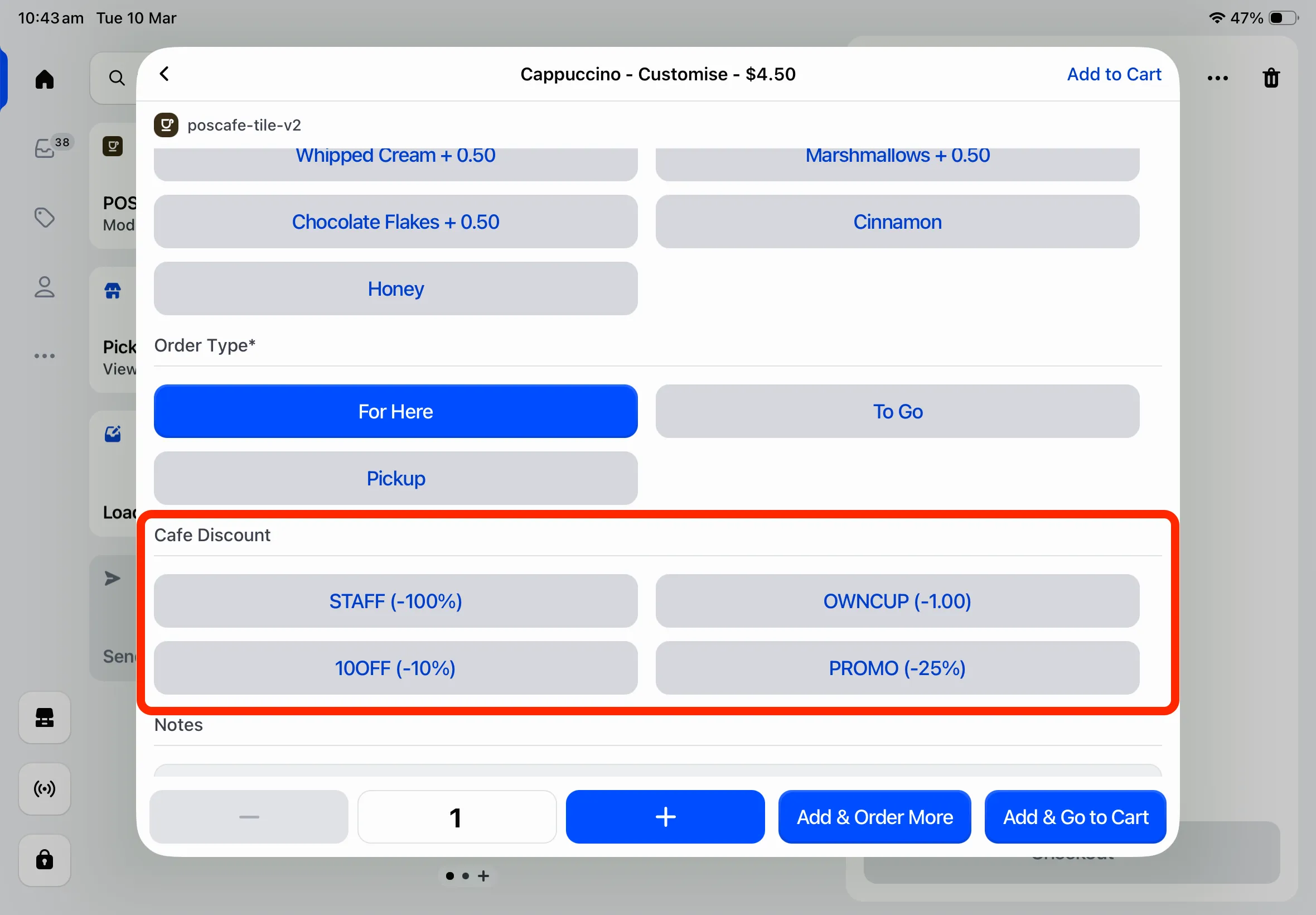
The POS Cafe Discounts feature allows you to create and manage custom discounts directly within POS Cafe. You can assign specific discounts to individual cafe items straight from the POS Cafe tile in Shopify POS.
How does this differ from Shopify Discounts?
Section titled “How does this differ from Shopify Discounts?”Unlike standard Shopify Discounts, which apply to the entire cart or rely on complex eligibility rules, POS Cafe discounts can be seamlessly applied to individual items while you are customising an order.
Cafe discount reporting
Section titled “Cafe discount reporting”POS Cafe applies each cafe discount to the item in the Shopify POS cart as a standard line item discount, using your discount’s title.
How to set up
Section titled “How to set up”To start using cafe discounts, you first need to configure them within the POS Cafe app in your Shopify admin.
-
Log into your Shopify admin, and go to Apps → POS Cafe → Cafe Discounts.
-
Click Create Discount.
-
Enter a descriptive Discount Title (e.g., ‘STAFF’, ‘BYO CUP’), choose the Discount Type (Fixed amount or Percentage), and enter the Value.
- Fixed amount: Deducts a specific value from the item. For example, a $1.00 ‘BYO CUP’ discount for customers keeping it eco-friendly.
- Percentage: Deducts a percentage from the item’s price. For example, a 50% ‘STAFF’ discount for employee meals.
-
Click Save to save your discount.
Show a discount on order tickets
Section titled “Show a discount on order tickets”Some cafe discounts are really instructions for the kitchen, such as No Cold Foam or Kid Size. Tick Show on order tickets on a discount and its title prints with the item’s choices, so the barista sees it.
- Open the discount. Go to Apps → POS Cafe → Cafe Discounts and click the discount.
- Tick Show on order tickets.
- Save, then refresh. Click Save, then refresh POS Cafe on your POS devices (see the next section).
A ticked discount shows on every order ticket and kitchen screen: Epson and Star order tickets, Shopify POS printer tickets, Fresh KDS, and Send to prep tickets. It prints right after the item’s size and before its other choices. For an item without sizes, it comes first.
1 x Latte Large Kid Size Oat Milk Extra ShotLeave Show on order tickets unticked for discounts the kitchen doesn’t need to know about, such as Employee or Birthday. An unticked discount never prints on order tickets. Every cafe discount still appears on the customer’s receipt as a line item discount, ticked or not.
Using cafe discounts in POS
Section titled “Using cafe discounts in POS”After creating or updating a discount, refresh POS Cafe on your Shopify POS device to sync the latest changes: open the POS Cafe tile, tap Settings, then tap Refresh next to Refresh Data. See Refreshing POS Cafe.
Once refreshed, your new discounts will be available on the item customisation screen of the POS Cafe and POS Cafe - Lite tiles: