
Order Emails
Shopify’s default staff order email lists items but not the details a cafe needs. POS Cafe’s email template replaces it with a layout that shows the pickup date and time, the order type, and each item with its modifiers, grouped by prep area. Use it if your team works from order emails for online orders.
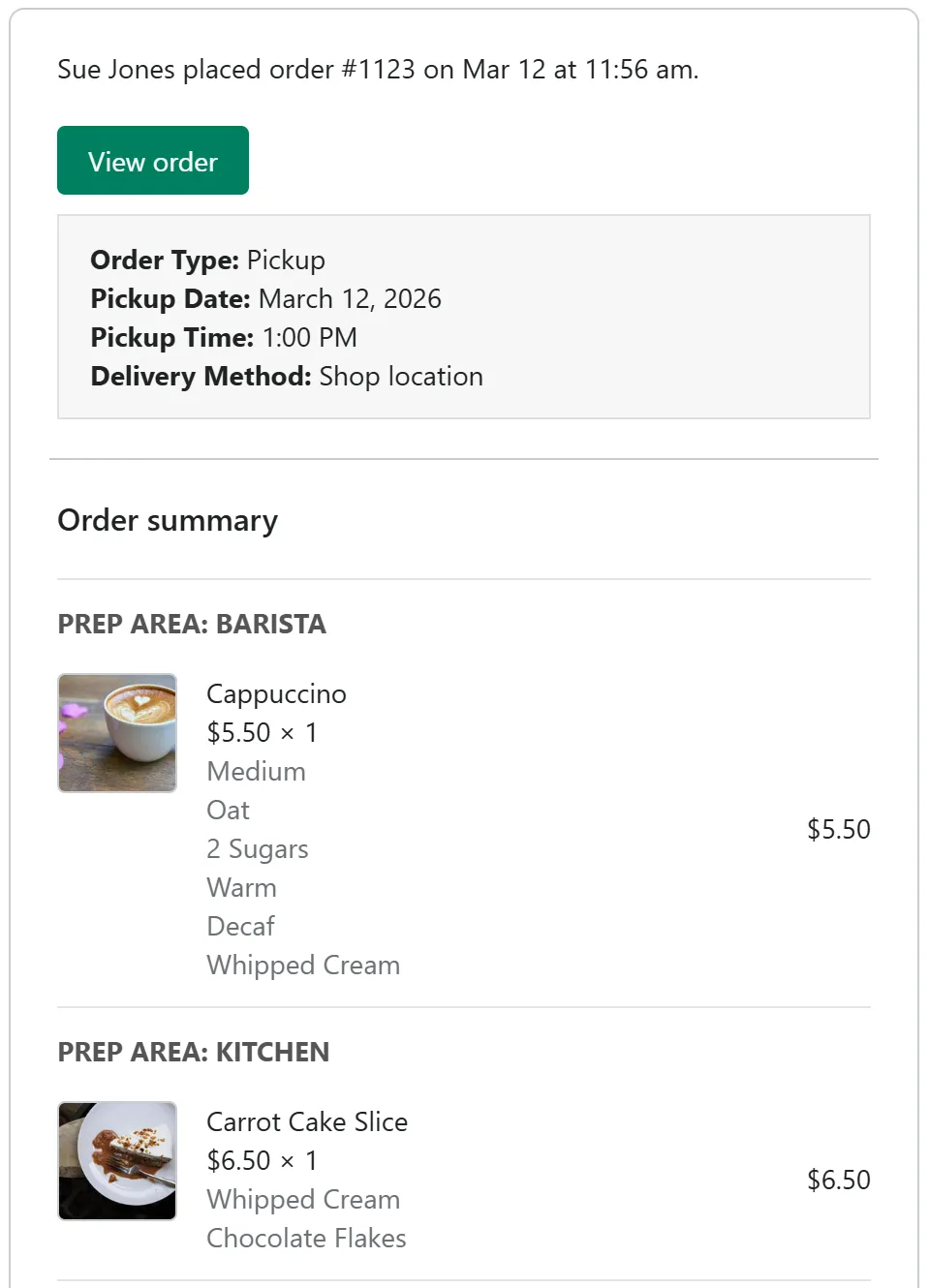
Example of a customised POS Cafe staff order email, showing the orders grouped by prep area, pickup date & time, and modifiers listed below each item.
Setup Instructions
Section titled “Setup Instructions”Follow these steps to format and customise your staff order email notifications in Shopify:
-
From your Shopify admin, go to Settings.
-
Select Notifications from the settings menu.
-
Select Staff notifications.
-
Ensure the email address intended to receive these notifications is present in the Recipients list. If it isn’t, click Add recipient to include it.
-
In the Add recipient popup, enter your email address. Then, choose which types of notifications you wish to receive:
- All Orders: Receive notifications for both your Online Orders and POS orders.
- Online Orders: Select a specific location or online channel to receive notifications exclusively for Online Orders.
-
Scroll down to the templates and select New order.
-
Click on Edit code.
-
In the template editor, fully highlight and delete all existing code within the Email body (HTML) section.
-
Click Copy template below, then paste into the now-empty Email body (HTML) editor. If copying doesn’t work in your browser, download the file, open it in a text editor, and copy everything in it.
Order Notification Email (v1.1)
-
Click Save to apply your changes.
Troubleshooting
Section titled “Troubleshooting”Need to revert?
Section titled “Need to revert?”You can always revert your Order Notification template to a previous version, or revert it back to its Default state. In the Code Edit screen, click on the Revert to button to choose a version to restore: