
POS Cafe Tile Translations
Every label in the POS Cafe tile can be translated into your language or reworded to match your business’s own terms, with no code required. The same translations apply to both the POS Cafe and POS Cafe - Lite tiles, so a custom tile title replaces the title on both.
Open the translation settings
Section titled “Open the translation settings”- In your Shopify admin, open Apps → POS Cafe.
- Go to Settings.
- In the POS Extension section, select POS Extension Translations.
The POS extension translations page lists every piece of text the POS Cafe tile displays. Use the fields to translate the tile into your language, or to change the wording to suit your business.
Change a piece of text
Section titled “Change a piece of text”- Find the field you want to change. Use the Search POS translations… box to jump straight to it; you can search by key, English default or current value.
- Enter your replacement wording.
- Click Save.
Find untranslated text
Section titled “Find untranslated text”Turn on Show only values using defaults to list every field that still uses the default, so you can work through them. The badge at the top shows how many fields are using defaults, and each of those fields is marked Default.
Apply your changes
Section titled “Apply your changes”Once you’ve saved, open the POS Cafe tile on each device, tap Settings, then tap Refresh next to Refresh Data. The new text appears as soon as the refresh finishes, and the tile on the Shopify POS home screen, including its title and subtitle, updates within about 10 seconds. See Refreshing POS Cafe.
If you don’t refresh, devices pick up the new text on their own within about 10 minutes as staff use the tile.
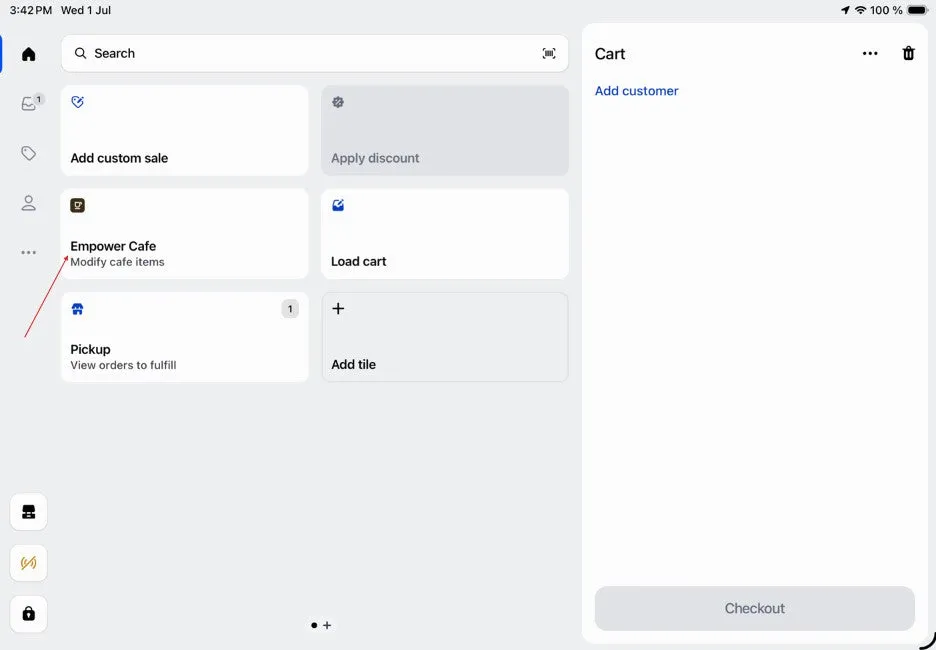 The tile now shows your custom text.