
Refreshing POS Cafe
To open quickly, the POS Cafe tile keeps a copy of your menu data on each POS device. Once that copy is more than 4 hours old, the tile refreshes it in the background and your changes appear the next time the tile is opened. If you update your cafe collections, items, modifiers, cafe discounts or POS tile translations in the Shopify admin and want to see the changes immediately on your POS device, refresh POS Cafe manually.
Additionally, we recommend re-syncing your entire Shopify POS app whenever significant changes are made to your Shopify products.
How to refresh POS Cafe
Section titled “How to refresh POS Cafe”-
Tap on the POS Cafe tile (or the POS Cafe - Lite tile).
-
Tap on Settings on the Cafe Collections screen.
-
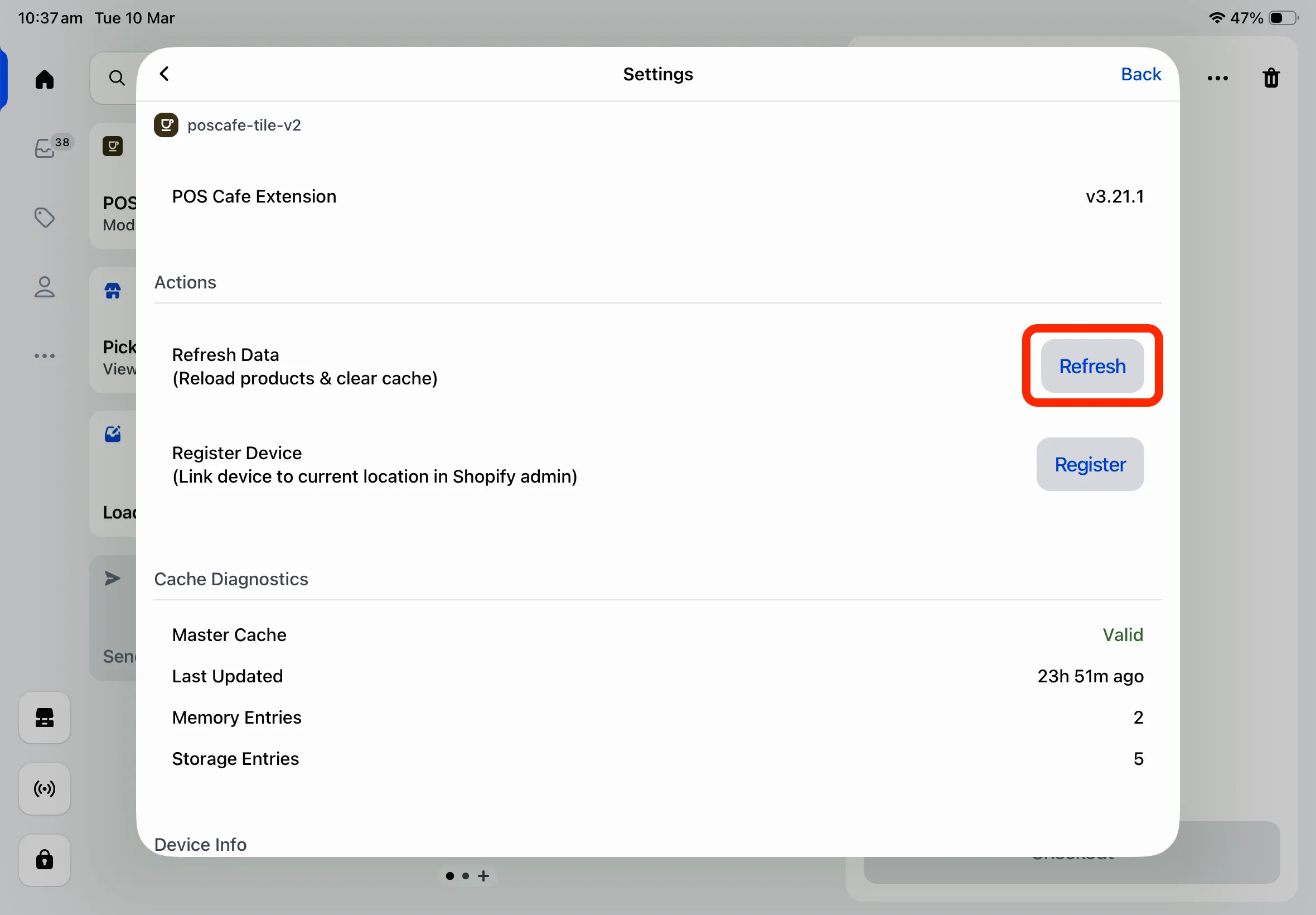
Tap Refresh. In the Actions section, tap Refresh next to Refresh Data (Reload products and clear cache). A Refreshed message confirms it worked, and the tile closes. If you see “Couldn’t refresh the menu. Still using the menu saved on this device.”, check the device’s internet connection and try again.
How to refresh Shopify POS
Section titled “How to refresh Shopify POS”-
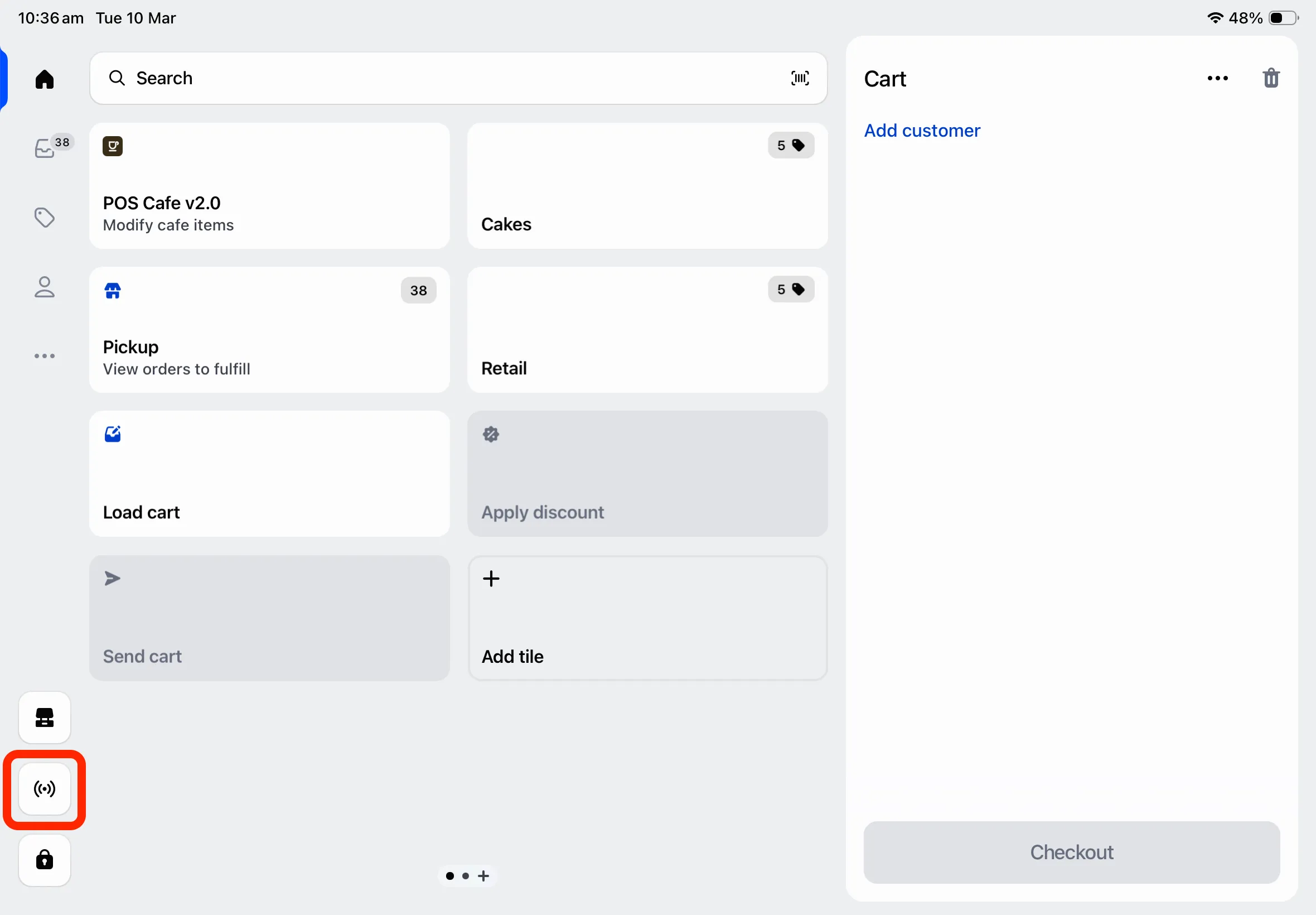
Tap on the Connectivity icon.
-
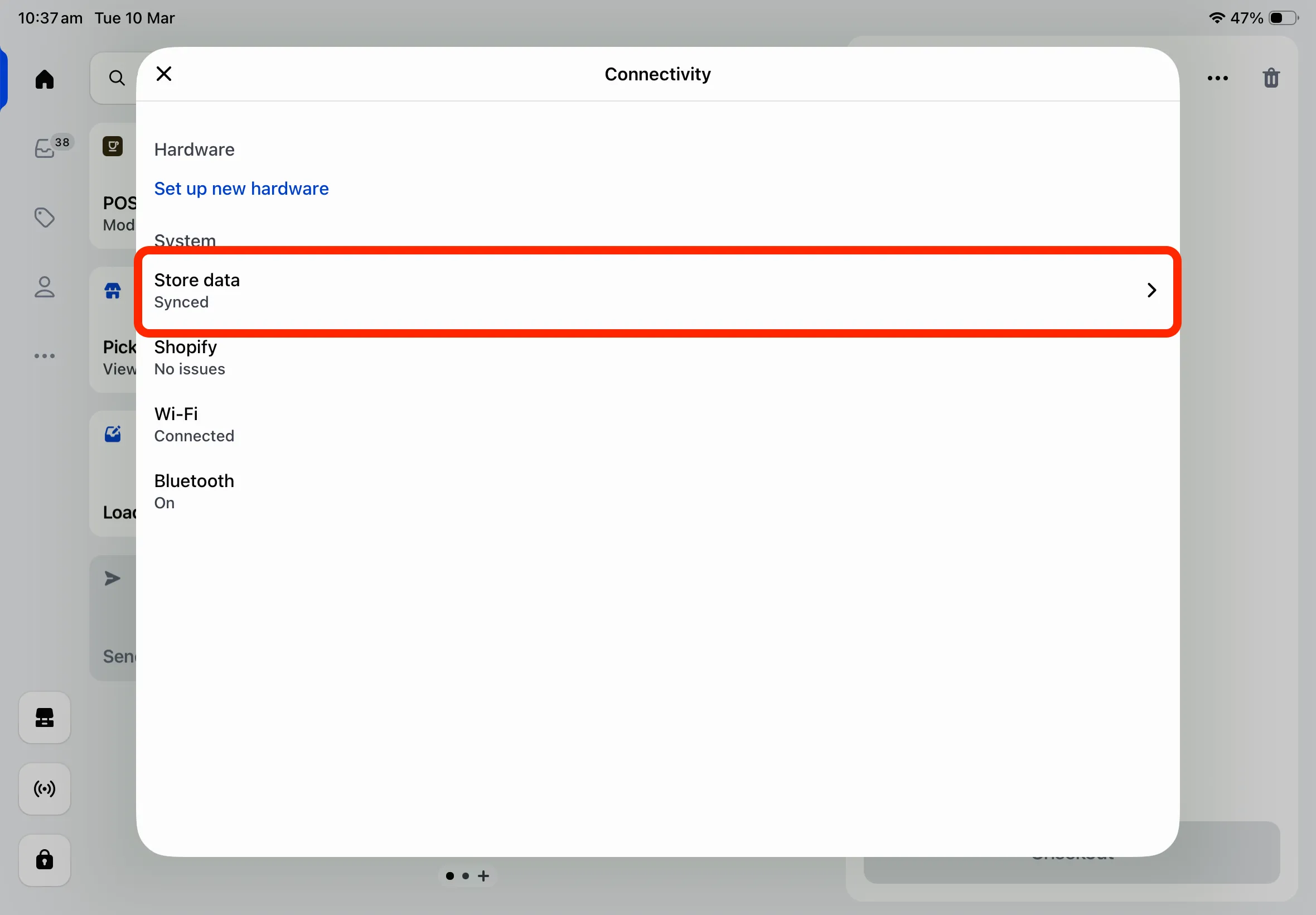
Tap on Store Data.
-
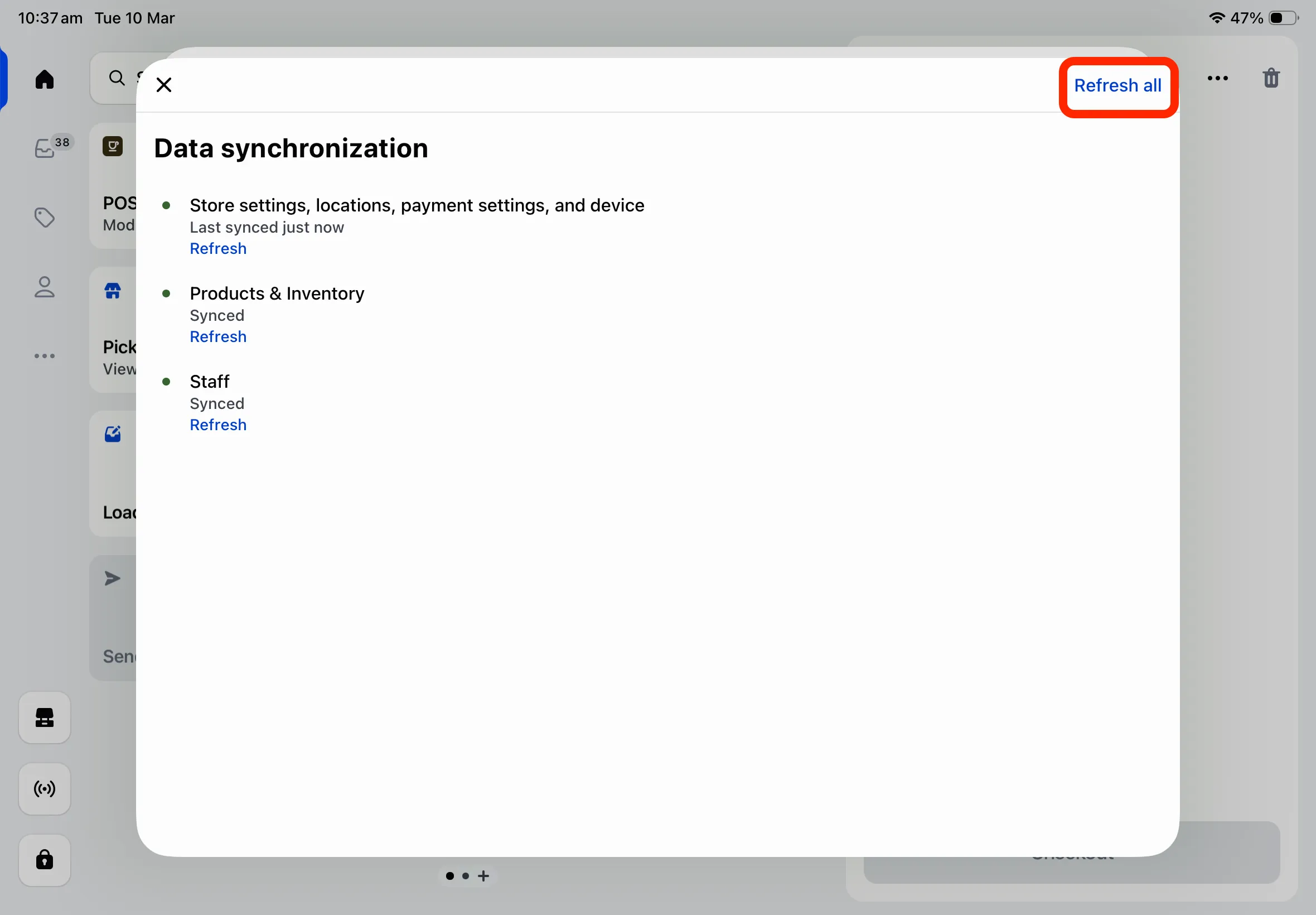
Tap on Refresh All.
-
Wait for the sync to complete. Your Shopify POS app is now fully up to date with the latest changes from your Shopify admin.