
Locations: Hours, Order Types & Pickup
Each POS Cafe location has its own online ordering settings: whether ordering is on, which order types you accept, opening hours, and how stock is shown on the online ordering menu. Open a location from the Locations list to manage these.
Online Ordering settings for a location
Section titled “Online Ordering settings for a location”The Online Ordering section of the location page (“Control how this location accepts online orders”) has three toggles:
| Setting | What it does |
|---|---|
| Enable online ordering for this location | When disabled, this location is completely hidden from the online ordering location picker. If you have several locations, customers can pick one (or scan a QR code for a specific location). |
| Enable “order for later” (scheduling) | Allows customers to schedule orders for a future date and time. When disabled, all orders are treated as immediate (ASAP). |
| Show out of stock / sold out items | When enabled, products with no inventory at this location still appear in the menu (customers see them as unavailable). When disabled, out-of-stock products are hidden from the catalogue. |
The scheduling and out-of-stock settings only apply when online ordering is enabled for the location. The section also shows an Online ordering menu row with the location’s publish status (for example Published).
Order types
Section titled “Order types”Order types (For Here, To Go, Pickup, Drive Thru, Delivery and Curbside) are managed in the separate Order Types section of the location page, where you turn each type on or off for the location. When at least one order type is active, a Set Default link lets you choose the location’s default order type. The online ordering menu respects each location’s default order type. See Order Types for more on how order types work across POS Cafe.
Asking for vehicle details
Section titled “Asking for vehicle details”For online Drive Thru and Curbside orders, the POS Cafe online ordering menu can ask customers about their vehicle, so staff can find the right car. The Ask for vehicle details switch sits at the bottom of the location’s Order Types section. It only appears while Drive Thru or Curbside is turned on for the location.
The switch is on by default, so customers see the vehicle fields at every location that offers Drive Thru or Curbside online. To stop asking, turn off Ask for vehicle details and click Save in the save bar at the top of the page.
When a customer chooses Drive Thru or Curbside in the POS Cafe cart, two optional fields appear below the date and time:
| Field | Example shown in the field | Maximum length |
|---|---|---|
| Vehicle make and model (Optional) | e.g. Toyota Corolla | 80 characters |
| Vehicle colour (Optional) | e.g. Blue | 40 characters |
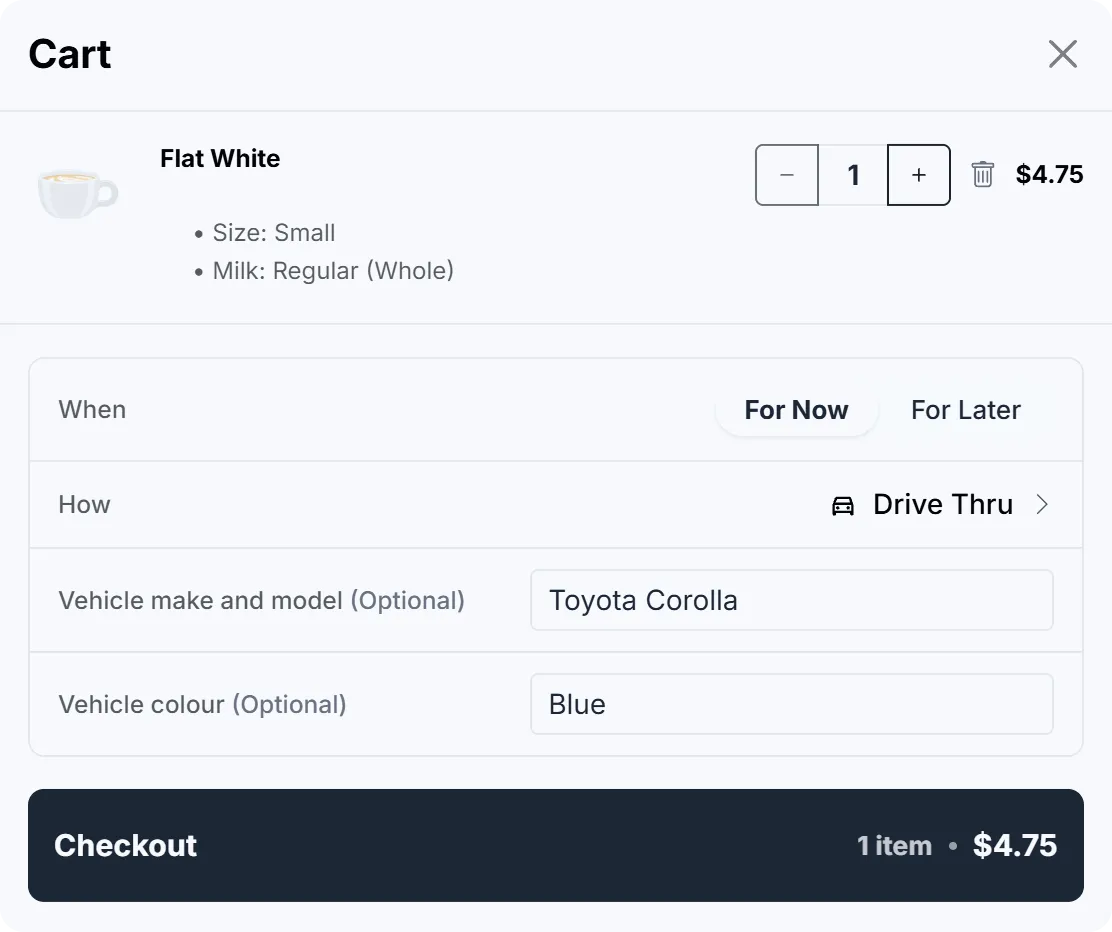
Captured September 2026.
Customers can leave both fields blank and still check out. If a customer switches between Drive Thru and Curbside, what they typed is kept. If they switch to any other order type, the vehicle details are removed from the order.
Vehicle details only appear on Drive Thru and Curbside orders:
| Where | What staff see |
|---|---|
| Receipt printer tickets | A large, bold line with the colour and then the make and model, for example “Vehicle: Blue Toyota Corolla”. |
| Fresh KDS | The same “Vehicle:” line at the start of the order’s note, before any note the customer left. See Fresh KDS. |
| Shopify order | The order’s additional details, as Vehicle Model and Vehicle Color. |
Store hours & date overrides
Section titled “Store hours & date overrides”Open Location Setup → Store Hours on the location page to set weekly opening hours and add date overrides for holidays or special events (for example, closing early on a public holiday). A location’s opening hours drive its Open / Closed status and the time slots offered for scheduled orders.
Local pickup & live inventory
Section titled “Local pickup & live inventory”To show live, per-location stock (so a sold-out item at one cafe isn’t shown as available at another), enable local pickup for the location under Settings → Shipping and delivery → Local pickup in Shopify. With local pickup on, the menu reads real-time availability per location.
If online ordering is on but local pickup is off, the location’s Online Ordering section shows an Enable local pickup for live stock levels banner. Without local pickup, the menu relies on the optional live sold-out list, or on the sold-out items captured at the last publish. See Live Sold-Out Updates for how the menu chooses between them.
When changes go live
Section titled “When changes go live”Saving location settings, store hours or the location menu re-publishes your online ordering menu automatically. If the menu can’t be fully published, you’ll see a message such as “Location updated, but menu data could not be fully published”, so you can try again. See Building Your Menu for details.