
Online Ordering Translations
The POS Cafe online ordering menu ships with English default wording, and you can translate or reword any of it (buttons, labels, prompts) for every language your store sells in, without touching code. Use it to translate the menu, or to change the wording to match your own business terms. Find it under Settings → Online Ordering → Online Ordering Translations.
How it works
Section titled “How it works”- Each piece of storefront text has a built-in English default shipped with the app.
- You only need to enter a value where you want to override the default.
- Anything you leave blank falls back to your store’s primary language value, then to the English default. So you can change just the few phrases you care about.
- Blank values are flagged as Missing, and a count of missing translations appears at the top of the list.
The page lists every piece of text you can change, and every language set up in your store.
Translating or rewording text
Section titled “Translating or rewording text”-
Open the page. Go to Settings → Online Ordering → Online Ordering Translations.
-
Choose a language. Your store’s primary language is selected first. To reword the English text to match your business terms, choose English; to translate, choose another language.
-
Find the text. Text is grouped by where it appears (for example Cart, Product, Modifiers and Errors). Use Search translations to find a phrase, or tick Show only missing translations to focus on blanks.
-
Enter your wording. Type the new text for each item you want to change.
-
Save. Your changes publish to the storefront in that language.
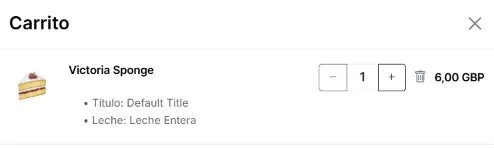 The translated cart title on the storefront.
Restore defaults
Section titled “Restore defaults”Restore defaults fills in any missing text in your store’s primary language with POS Cafe’s default wording. Text you’ve already changed is kept.