
Pricing, Currency & Markets
The POS Cafe online ordering menu shows live prices straight from your store, in the currency that’s right for each customer. Here’s how pricing and currency behave, and what to check if something looks off.
Live, market-correct pricing
Section titled “Live, market-correct pricing”The online ordering menu uses a Storefront API connection to load prices and availability in the customer’s market context. That means a shopper in another country sees prices in their presentment currency, matching what they’d pay at checkout. The key for this connection is created automatically when you install POS Cafe.
The cart follows the currency
Section titled “The cart follows the currency”If a customer switches currency using your store’s currency selector, the page reloads and both the product prices and the cart update to that currency, so the symbol and totals stay consistent through to checkout.
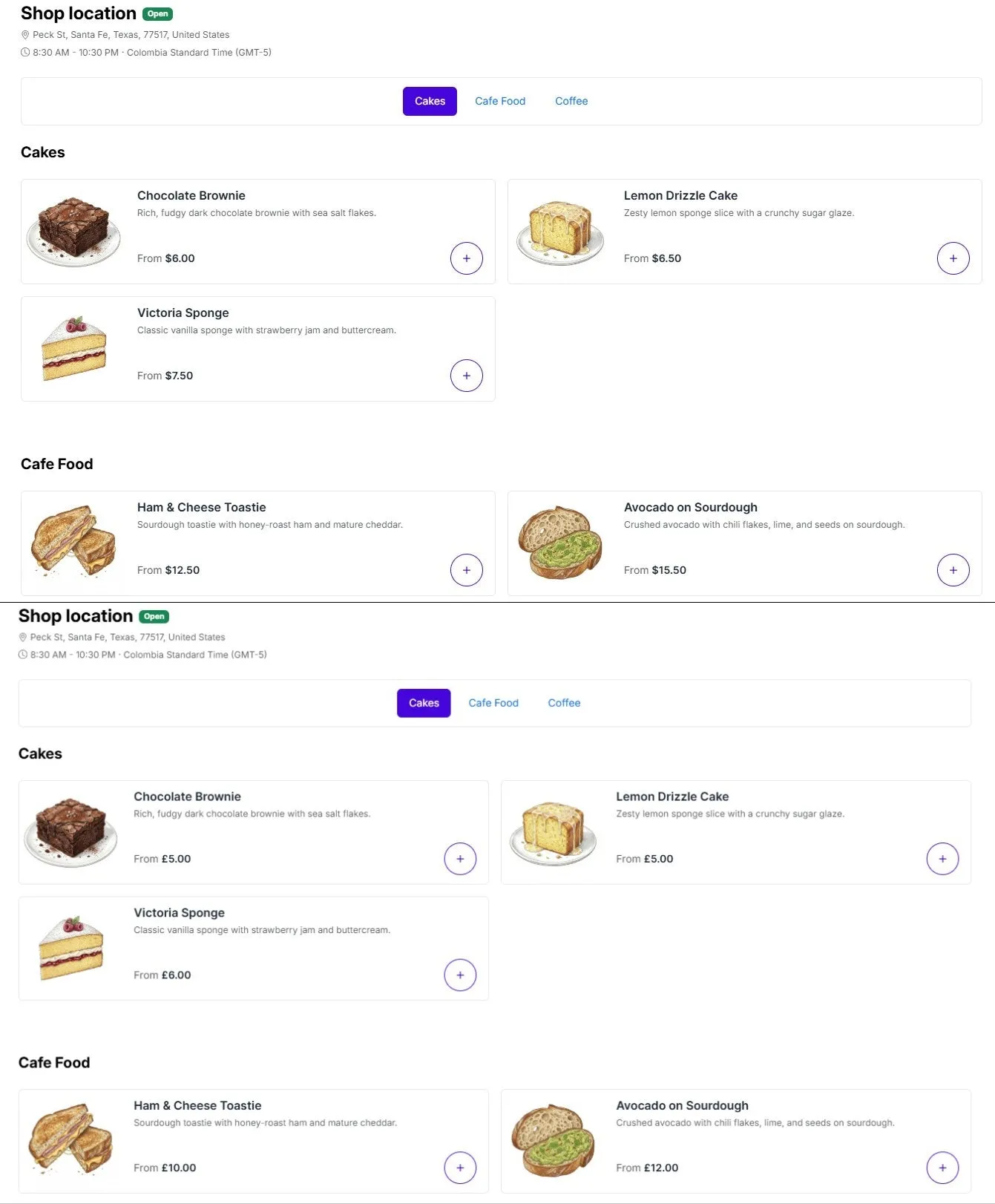 Prices and cart follow the buyer’s currency.
If the connection isn’t working
Section titled “If the connection isn’t working”Without a working Storefront API connection, the menu still works but uses the prices captured at the last menu publish, in your base currency. If a customer is browsing in a different currency, a small notice may appear letting them know prices will be converted at checkout.
To check the connection, go to Settings → General Online Ordering Settings and look at the Online ordering connection card. If it shows Needs attention or Not set up, select Regenerate. See Installation & Connecting Your Store.